What Capasight does
Your monday dev boards hold the plan; Capasight shows whether your teams can deliver it. It sets the demand of your epics against the capacity of the teams that do the work, grouped as you plan them — ARTs and value streams, or simply the teams you plan together — PI by PI and sprint by sprint. It forecasts when each epic will land, and names what to change when the plan does not fit.
Before you start
Capasight reads the boards monday dev already gives each team. You need:
- monday dev, with each team set up the way monday dev's Add team makes it: a folder holding the team's Epics, Tasks and Sprints boards.
- Sprints on each team's Sprints board, with their dates. Capasight measures each team's velocity from the sprints it has completed.
- Story points on tasks, in the Estimated SP column of each team's Tasks board, with tasks connected to their epic and their sprint.
- Dates on epics — a timeline — so their demand can be placed in the sprints they are planned for.
- A t-shirt size on epics, strongly recommended: a Status column on the Epics boards with labels such as XS, S, M, L and XL. A size is how Capasight sees the demand of an epic before its work has been broken down into tasks, and without one an epic with no tasks yet carries no demand at all.
Installing the app needs a monday.com account admin. Anyone in the account can use it once it is added.
Install and add Capasight
- An account admin installs Capasight from the monday.com app marketplace, or from the install button on capasight.co.uk.
- In the workspace where your monday dev teams live, choose + in the left-hand list, then Apps, and pick Capasight. It opens as a page of its own in the workspace.
- The first time it opens, Capasight reads the boards you can see. On a large account this takes a minute or two; you can leave the page open and it fills in by itself.
Capasight reads monday.com as the person using it, with that person's own permissions: people see only the boards monday.com lets them see. It writes nothing to your boards.
Your first ten minutes
1. Answer the setup questions
The first time an admin opens Capasight, a short setup shows what it found on your boards and asks which columns carry your planning data, what you call your groups of teams, and who does the planning. Capasight suggests an answer for each — check them, change any that are wrong, and finish. Nothing is saved until you do.
2. Set up planning
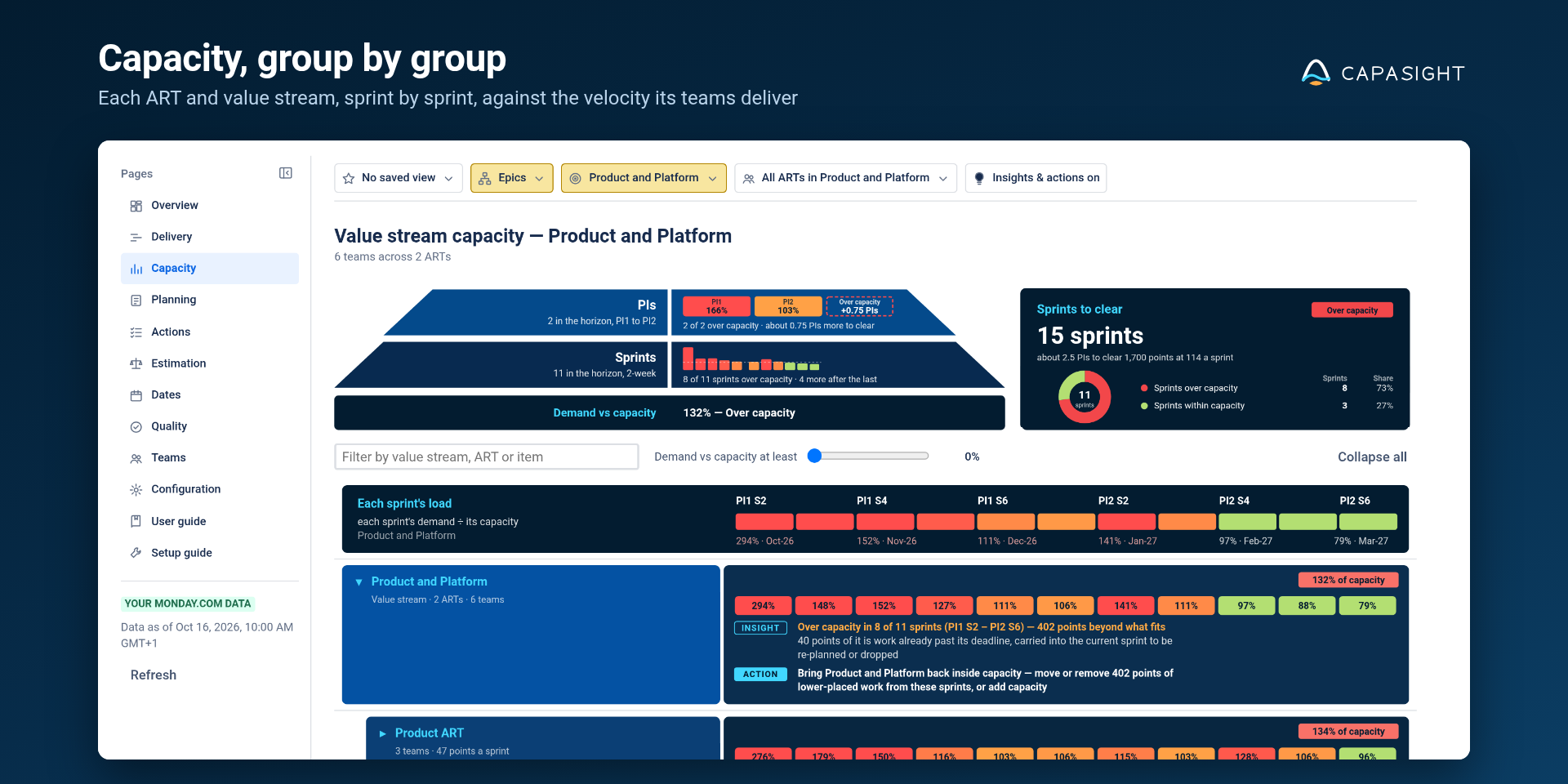
Planning happens in groups of teams, not one team at a time. Choose Set up planning to put your monday dev teams into ARTs (and your ARTs into value streams, if you use them), say what each t-shirt size is worth, and say when your sprints start. Each team's velocity is measured from its completed sprints.
3. Read the Overview
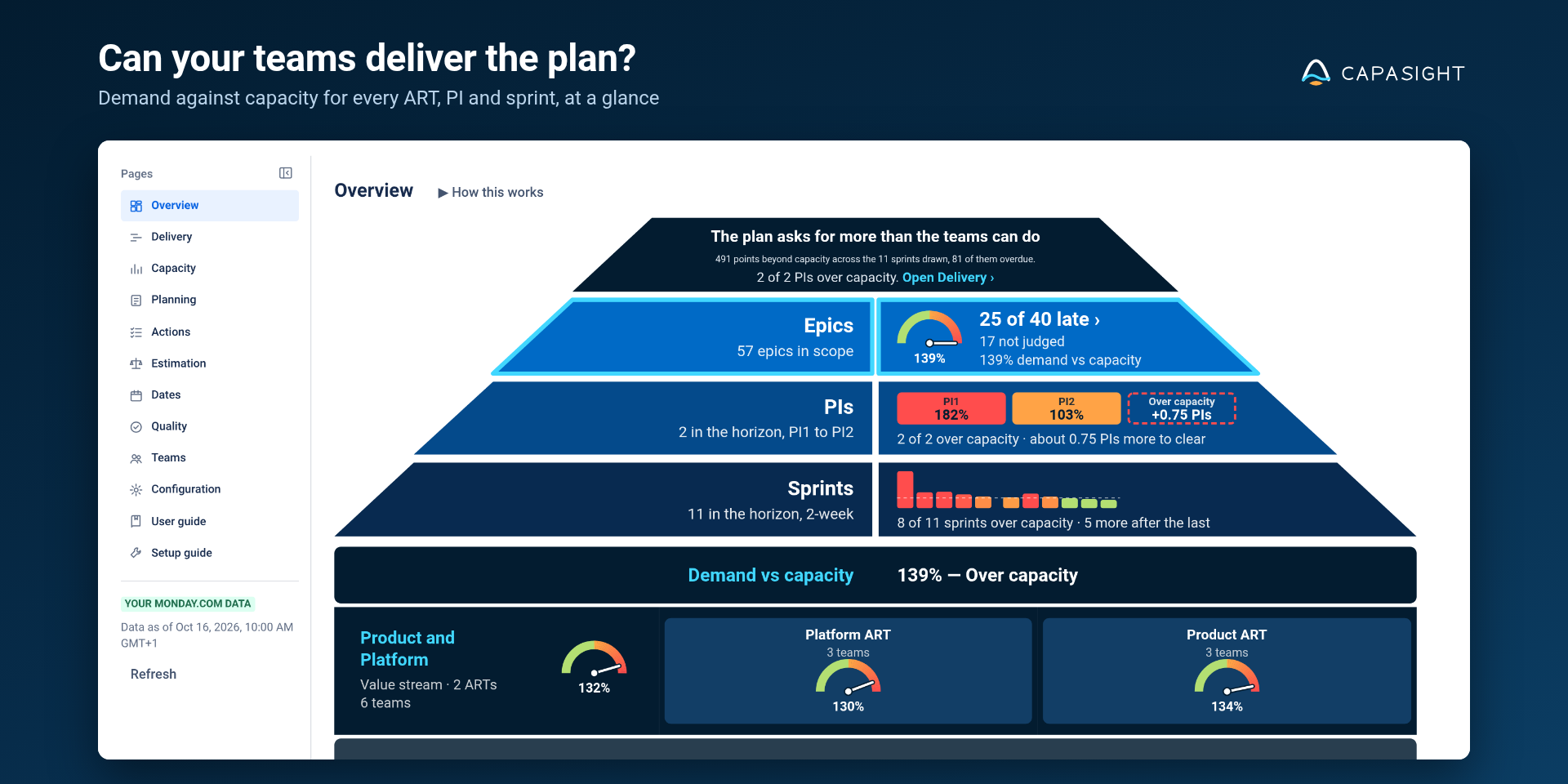
The Overview is the whole plan at a glance: how many epics land late, the demand against capacity at each level, and which PIs and sprints are over capacity. Choose a level to open Delivery, its gauge to open Capacity, or a value stream or ART to open Capacity for that group.
4. Follow the findings
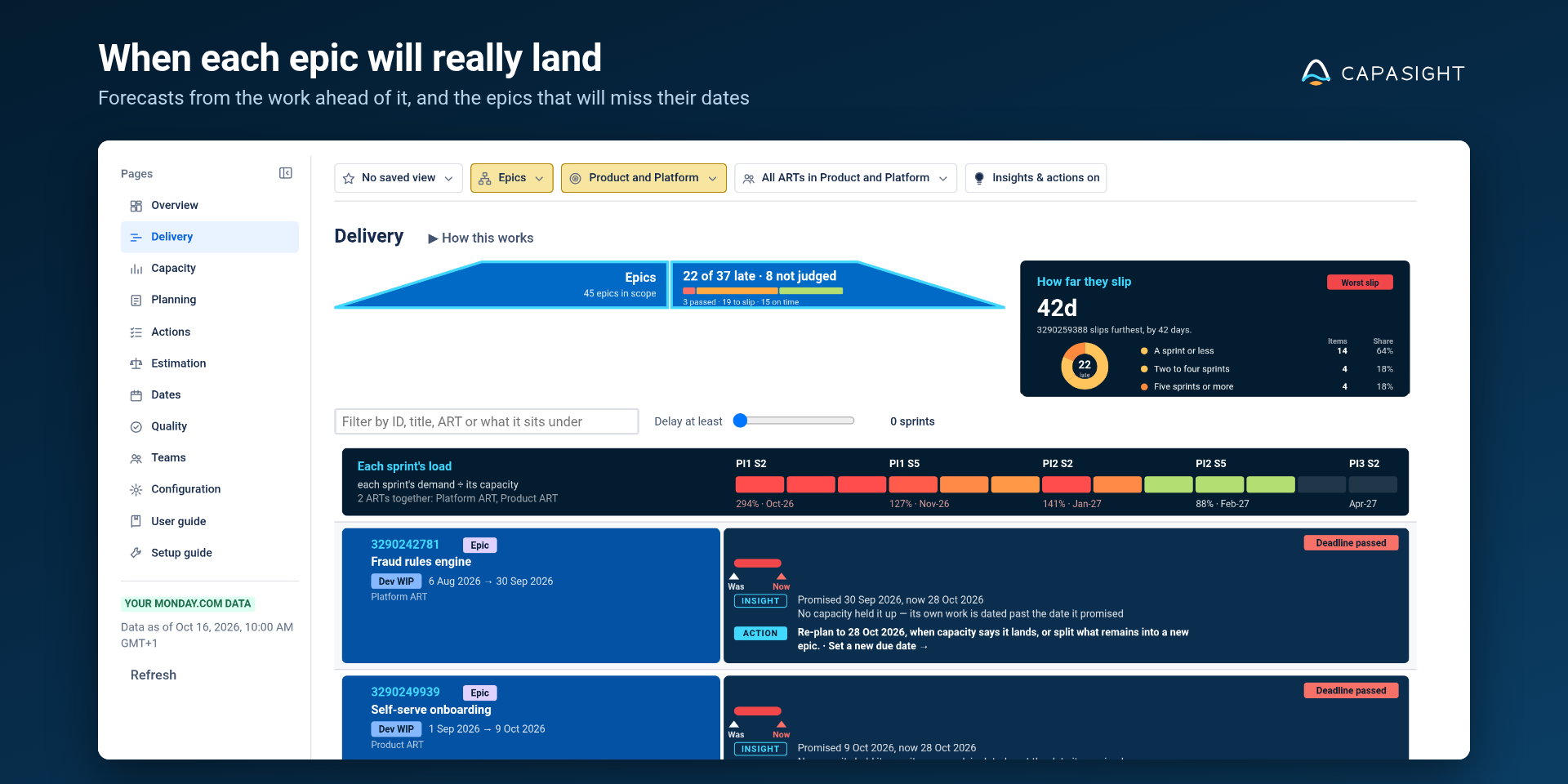
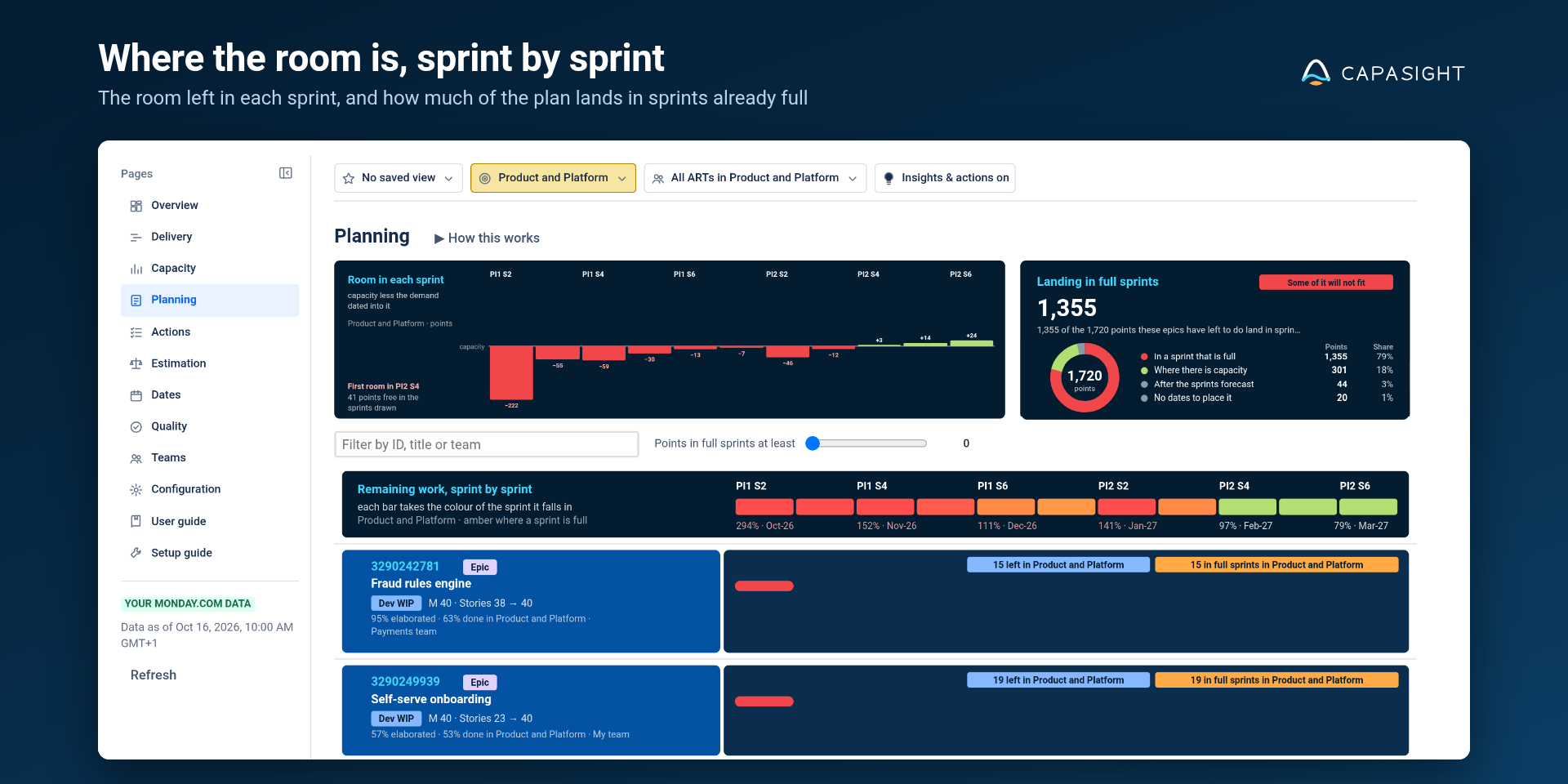
Delivery forecasts when each epic will land given the work ahead of it. Actions lists every finding, most urgent first, each with the change that would fix it. Planning shows the room left in each sprint, for re-arranging the plan.
Ask Franklin, Capasight's AI
Franklin answers planning questions in monday sidekick — what is over capacity, which work will be late and why, when an epic will really land and what to fix first — in Capasight's own figures, about the page you have open.
- Franklin works best beside Capasight on a board: add Capasight as a view on one of your monday dev boards (the + beside the board's views, then Apps), and open monday sidekick there with Ask, create, analyze at the foot of the board, then Switch to side panel.
- In sidekick's message box, select the tools button beside + and turn Franklin on. Each person does this once.
- Ask about what you see: “Are we over capacity?”, “When will this be delivered?”, “What should we fix first?”. Franklin answers about the page, filters and item you have open in Capasight, from the boards you can see. To ask about something else, name the ART, value stream, team or item.
Good to know: sidekick asks you to approve each time it uses Franklin; Franklin only reads; sidekick uses your account's monday.com AI credits.
Who can change what
- Account admins run the setup and change any setting.
- Planners — the members of a monday team an admin nominates — change the planning settings: groups, velocities, sizes and sprint dates.
- Everyone else reads every figure and saves shared views. Viewers and guests read and apply saved views, and change nothing.
Help
Inside the app, User guide explains every figure and Setup guide walks through the setup. For anything else, email contact@capasight.co.uk.
Capasight is made by Agile Project Management Services Ltd, trading as Capasight. It is not affiliated with or endorsed by monday.com.