
Getting started
What Capasight does
Capasight reads your Asana portfolios and tells you whether the plan fits the teams, and what to change when it doesn't.
Demand
How much work each item really needs: its T-shirt size, or the work written beneath it, whichever is larger.
Capacity
What each Agile Release Train (ART) can deliver per sprint, from its teams' velocities.
Findings
Where the plan and the work disagree, with the action that would change the outcome.
What Capasight reads from Asana
Tasks carry the points. Projects carry a T-shirt size, dates and the team. Portfolios above them carry a size and dates too. Capasight compares the two.
Set up Capasight
Start a trial, connect Asana, and finish setup. Capasight shows what it found and suggests the rest.
Before you start
Capasight compares what someone stated with what the work says. Every finding has this shape.
So Capasight needs these in Asana:
| You need | Why it's needed |
|---|---|
| An Asana plan with portfolios | You choose the portfolios that hold your work, and Capasight reads everything in them. |
| A T-shirt size field | A single-select custom field holding each project's T-shirt size. The stated half of every size finding. |
| A points field | A number field your teams estimate tasks in. The evidence half of every size finding. |
| Start and due dates | On projects or tasks. They place demand in sprints and drive every date finding. |
| Teams that own the projects | Each Asana team that owns a project becomes a team in Capasight, and its projects' tasks are its work. |
| A Capasight workspace admin | Only a workspace admin can connect Asana and run setup. |
1 Step 1: Start your trial
The 30-day trial starts the first time Capasight reads your work from Asana. No card needed.
-
Sign up
Go to app.capasight.co.uk/signup and enter your name, organisation and work email.
-
Choose your password
Open the email from Capasight and choose your password. It needs 12 or more characters, and it's checked against passwords known to have been breached.
-
Set up two-step sign-in
Scan the code with an authenticator app, and save your recovery codes somewhere safe. Every user signs in with two steps.
2 Step 2: Connect Asana
Open Settings › Asana and select Connect with Asana.
Who: a Capasight workspace admin · Result: Capasight reads your portfolios
-
Sign in to Asana
Sign in as someone who can see the portfolios Capasight should read, and allow read-only access. Capasight keeps only the access Asana issues, sealed, and never your password.
-
Choose what to read
Under What to read, choose the workspace, the portfolios that hold your work, the T-shirt size field and the points field.
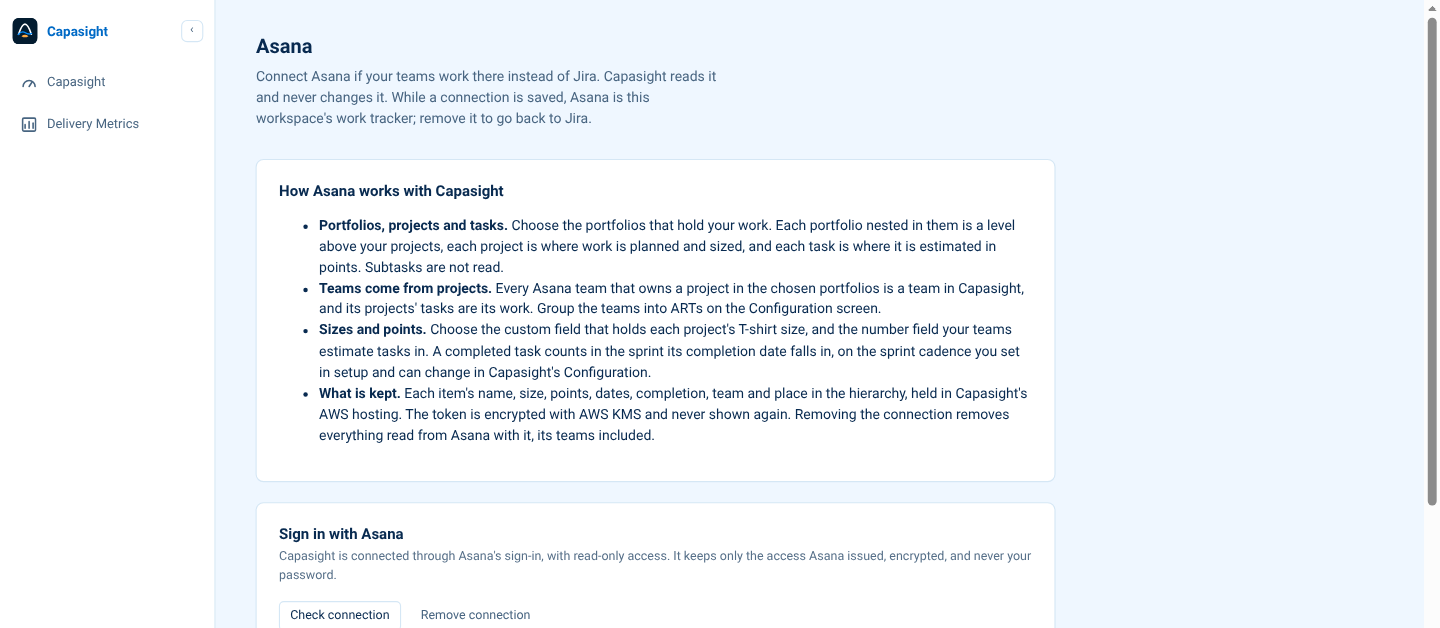
How Asana maps to Capasight
Portfolios, projects and tasks become Capasight's levels. Asana's teams become Capasight's teams.
| In Asana | In Capasight |
|---|---|
| A portfolio nested in the ones you chose | A planning level above your projects |
| A project | Where work is planned and sized: its T-shirt size, from your custom field |
| A task | Where work is estimated: its points, from your number field |
| A subtask | Not read |
| The team that owns a project | A team. Group teams into ARTs on Configuration |
| A completed task | Counts in the sprint its completion date falls in |
| Start and due dates | The item's dates. An item without its own dates takes the range of the work beneath it |
Done means marked complete. Asana has no status categories, no Resolved or Removed states, no sprints and no iterations. So done is a task marked complete in Asana, and Capasight uses its own sprint cadence, which you set in setup.
3 Step 3: Finish setup
The Setup Wizard shows what Capasight found and suggests the rest. Nothing is applied until you finish.
Who: a Capasight workspace admin · Result: every screen goes live
-
The levels
Your portfolios, projects and tasks, as Capasight found them. Check they look right. Where portfolios nest inside portfolios, each layer is its own level.
-
How teams group into ARTs and value streams
Asana keeps no grouping above the team, so Capasight suggests one. Check each ART's teams, and group ARTs into value streams if planning conversations happen above the ART.
A team belongs to exactly one ART.
A team in no ART adds no capacity, but its work still counts as demand. The Teams page lists these teams so you can place them.
Velocity: leave each team on Measured, and Capasight averages the points the team completed in the last three closed sprints of your cadence. Type a figure only where you know better, for example a team that has just changed shape.
-
What your T-shirt sizes are worth
Choose one unit, points or team-days; every screen then shows its figures in that unit. Suggested values are filled in. Change any size to what your teams mean by it.
XS2.5 dS5 dM10 d · one sprintL20 dXL40 dA starting scale for a project on two-week sprints: a medium is one team for one sprint, and each size halves or doubles. In team-days, points become team-days once, at the project, at the average team velocity of its ART.
-
The sprint cadence
Asana keeps no sprints, so you set the cadence here. See Your sprint cadence below.
-
When the app should speak up
Keep the suggested scope drift setting, 25%, or change it, then select Finish. It's how far the work beneath an item may grow past its T-shirt before that's scope drift.
Nothing is applied until you finish. If you cancel, everything goes back to how it was when you started.
Your sprint cadence
Asana keeps no sprints, so Capasight keeps one calendar for the whole portfolio. Enter the date your PI starts, then check the other settings.
The same calendar measures velocity: a completed task counts in the sprint its completion date falls in.
Keeping it current
Capasight reads Asana on the schedule set in Settings › Work Item Sync. An admin can also select Refresh at the top of any page.
Your licence
Settings › Asana › Licence shows when the trial ends, your workspace ID for ordering, and where to enter your key.
30-day trial
Starts the first time Capasight reads your work from Asana. No card needed.
Free up to 10 users
With a key.
Annual workspace licence
Priced by user band, and invoiced by Capasight. Asana does not bill for it.
Removing the connection
Settings › Asana › Remove connection revokes Capasight's access at Asana and deletes everything read from it, its teams included.
If Asana can't be reached at that moment, also remove Capasight under Asana's Settings › Apps.
Changing it later
Everything you answered in setup lives in Configuration: the levels, the T-shirt sizes, the sprint cadence, team velocities, ARTs and value streams, and when the app speaks up.
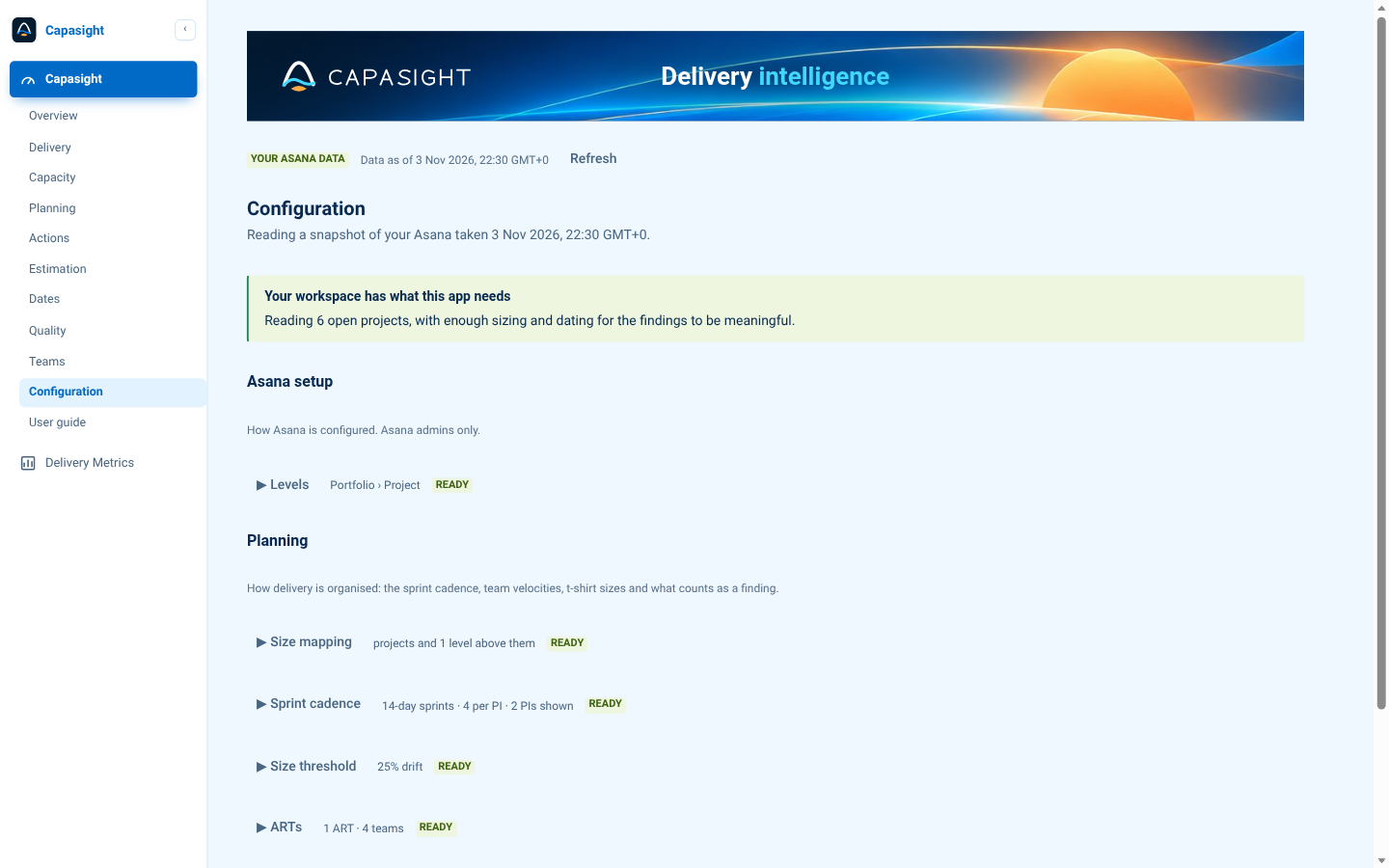
Applies to everyone
Configuration is stored in Capasight for your organisation, and nothing in it is written to Asana.
Start again
Start setup from scratch in the Setup Wizard asks every planning question again. Your connection, teams and work are kept, and cancelling puts everything back.
If you're seeing zeros
A count of zero isn't the same as no problems. Check these first.
| What you see | Why | What to do |
|---|---|---|
| Nothing is read at all | No portfolio is chosen. | Choose the portfolios that hold your work in Settings › Asana. |
| Scope drift is 0, but projects clearly vary | No project carries a T-shirt size, or the size field chosen isn't the one your teams fill in. | Check the T-shirt size field in Settings › Asana, and size a few projects that already have estimated tasks. |
| Points missing for some projects | The points field isn't on those projects. | Add the number field your teams estimate in to each project. |
| Deadlines passed, but demand is 0 | The late work has no estimate. | Estimate the open tasks, or size the projects. Each item is still counted as late. |
| No teams found | No project in the chosen portfolios belongs to an Asana team. | Check every project in the chosen portfolios belongs to the team doing the work. |
| No portfolio level to choose | No chosen portfolio holds another portfolio. | Nothing to fix if you plan by project. That's a fully supported way to run the app. |
Common questions
Does it change my Asana data?
No. Capasight asks Asana for read-only access and never changes anything in Asana.
What does it read, and where is it kept?
Each item's name, T-shirt size, points, dates, completion, team and place in the hierarchy. No descriptions, comments or attachments. It's kept in Capasight's hosting on AWS in the United States (us-east-1). The access Asana issues is sealed with AWS KMS and never shown again.
Whose view of Asana does it read?
The view of the person who connected it. Sign in to Asana as someone who can see every portfolio Capasight should read. Everyone in your Capasight workspace then sees the same figures.
How current are the numbers?
The time in the header is when Asana was last read. Capasight reads it on the schedule in Settings › Work Item Sync, and an admin can select Refresh for a new read at any time.
Are subtasks or archived projects read?
No. Subtasks are not work of their own here, and archived projects are left out, as Asana's own portfolio views leave them out.
What if a project sits in two portfolios?
It's read once, under the first, so it's never counted twice. The same goes for a task in two projects.
Why is a project showing no demand?
It has no start date, its start is after its due date, or it's marked complete. The first two are listed on the Dates page.
What does "Remaining pts." mean?
What an item has left to do: the larger of its T-shirt and its points, less the work already completed. A project sized M with 42 points written and 21 completed asks for 21.
Why does Elaboration read over 100%?
The tasks beneath an item have outgrown its size: 210% means the breakdown is twice the T-shirt. The plan already counts the larger figure.
Who pays, and how?
Capasight invoices you directly; Asana does not bill for it. See Your licence.
Reading any screen
The parts of a screen
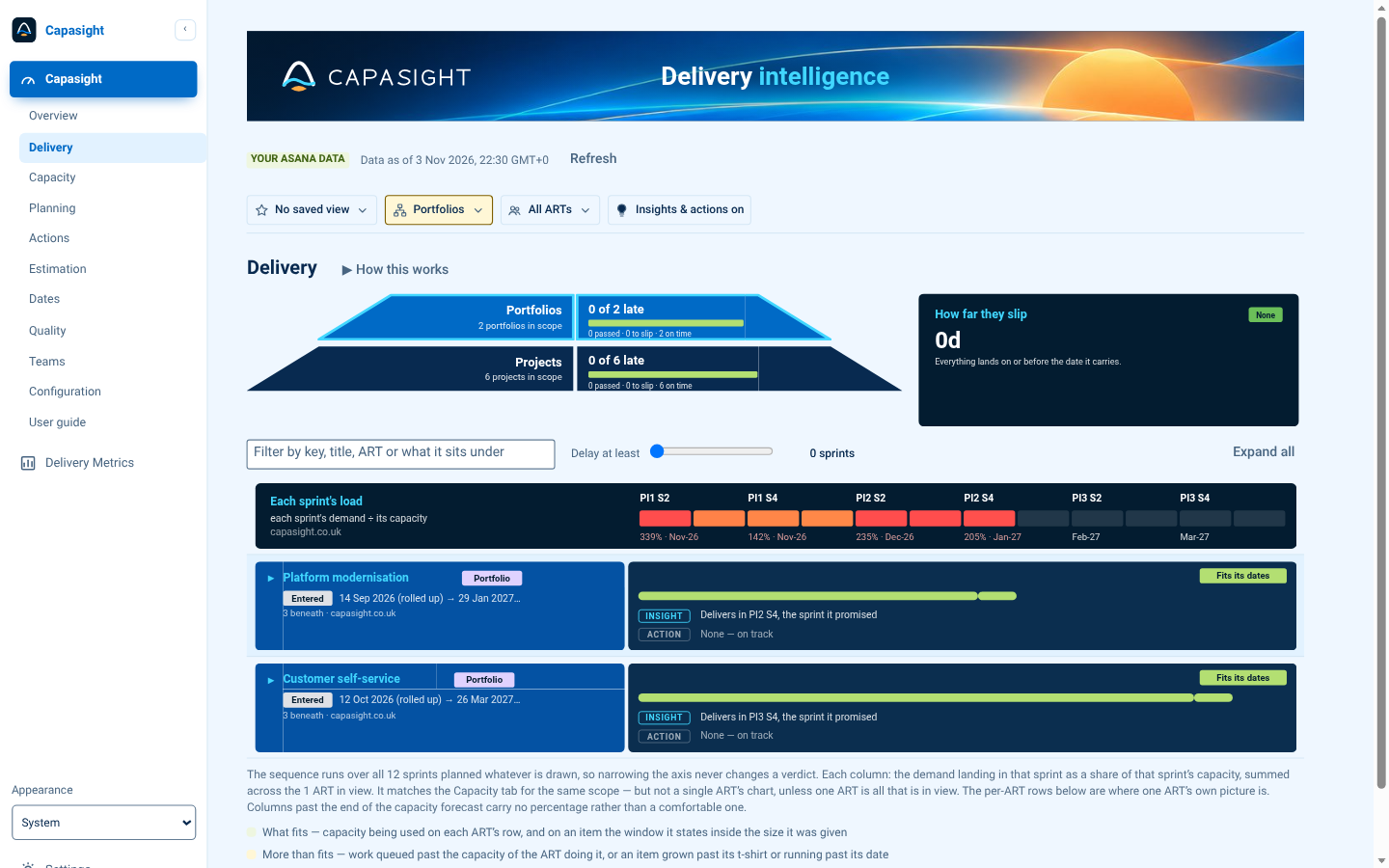
Every screen is built the same way, from the top down.
 1
2
3
4
5
- Filters: the level, and the value stream and ART where you have them. They apply to every screen at once, except the Overview and Quality, which always show everything.
- Pyramid: one tier per level of your hierarchy, with that screen's headline figure on each.
- Headline panel: the one number the screen is about, broken down.
- Sprint load: each sprint's demand against its capacity, in colour.
- Lanes: one per item or group. The item is on the left, and what was found and what to do is on the right.
What the colours mean
The same four colours mean the same thing on every screen.
It fits: inside capacity, inside its size, planned.
More than expected: over capacity, grown past its size, or running past its date.
A date missed, or one capacity says will be.
Not being worked, or nothing stated to measure.
Insight and Action
The right-hand side of every lane says what was found, then what to do about it.
InsightDelivers in PI2 S4, the sprint it promised.
ActionNone — on track.
- Insight (outlined) is what the row shows.
- Action (filled) is what to do. It uses the same words as the Actions page, so two pages never ask for different things.
- None (greyed) means there's nothing to do. It's a verdict, not a gap.
Turn Insights & actions off at the end of the filter row to scan the bars without the text.
Filters
Filters change what you see, never the figures themselves, and only for you.
Level
Read the same portfolio at Project, Portfolio or any portfolio level above. Each level answers a different planning question, so compare them.
Value stream and ART
Narrow everything to one group. Items above it stay on screen so you can see what the work is part of.
The screens
Each screen answers one question. Start with the Overview, and click any tier to go deeper.
Overview
What's in my Asana at each level, what lands late, and which groups carry it?
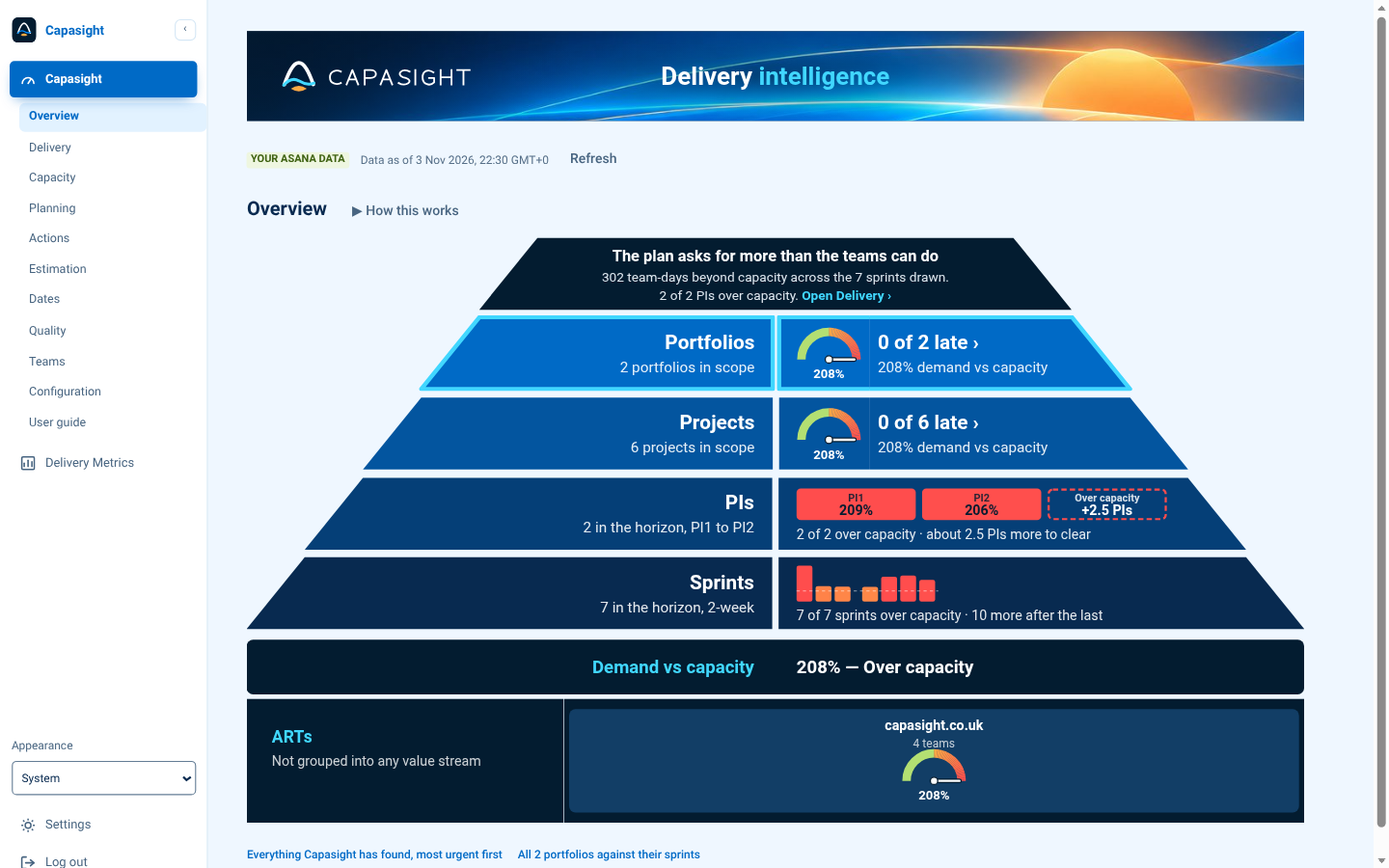
What you see
- Top: what's causing the picture, for example overdue work rather than over-promising.
- Each tier: how many items are at that level, how many land late, and a gauge of demand against capacity.
- Below: PIs and sprints coloured by load, then a tile for each ART.
On the gauge, straight up is 100%. Every gauge uses the same scale, so you can compare tiers directly.
Delivery
Given what each ART can deliver, when does this work actually land?
What you see
- Each level's late count, split into deadline passed, forecast to slip and on time.
- How far the late items slip.
- A lane per item: its plan against the sprints, with the verdict in the corner.
What to do
- See which ART sets a late item's date.
- Follow its Action: re-plan the date, re-prioritise it, or pull late work forward.
Capacity
What has this group committed to, against what it can do, sprint by sprint?
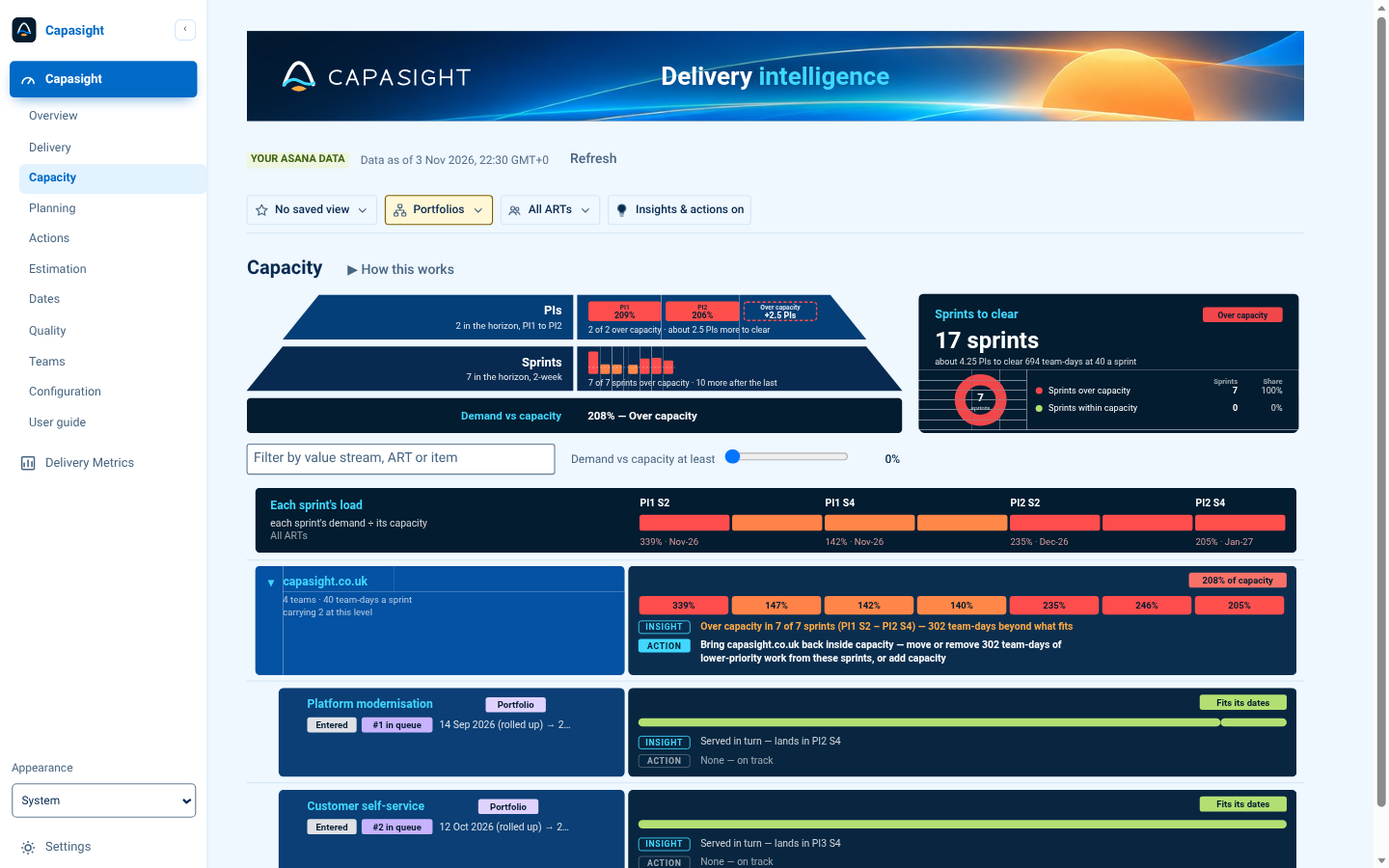
What you see
- Each PI and sprint, coloured by its load.
- How many sprints it would take to clear the work.
- A lane per value stream and ART, with how far over capacity it is and by how many points.
What to do
- Follow each group's Action: move or remove the lower-priority work it names.
Planning
How does the whole plan sit against the sprints it falls in?
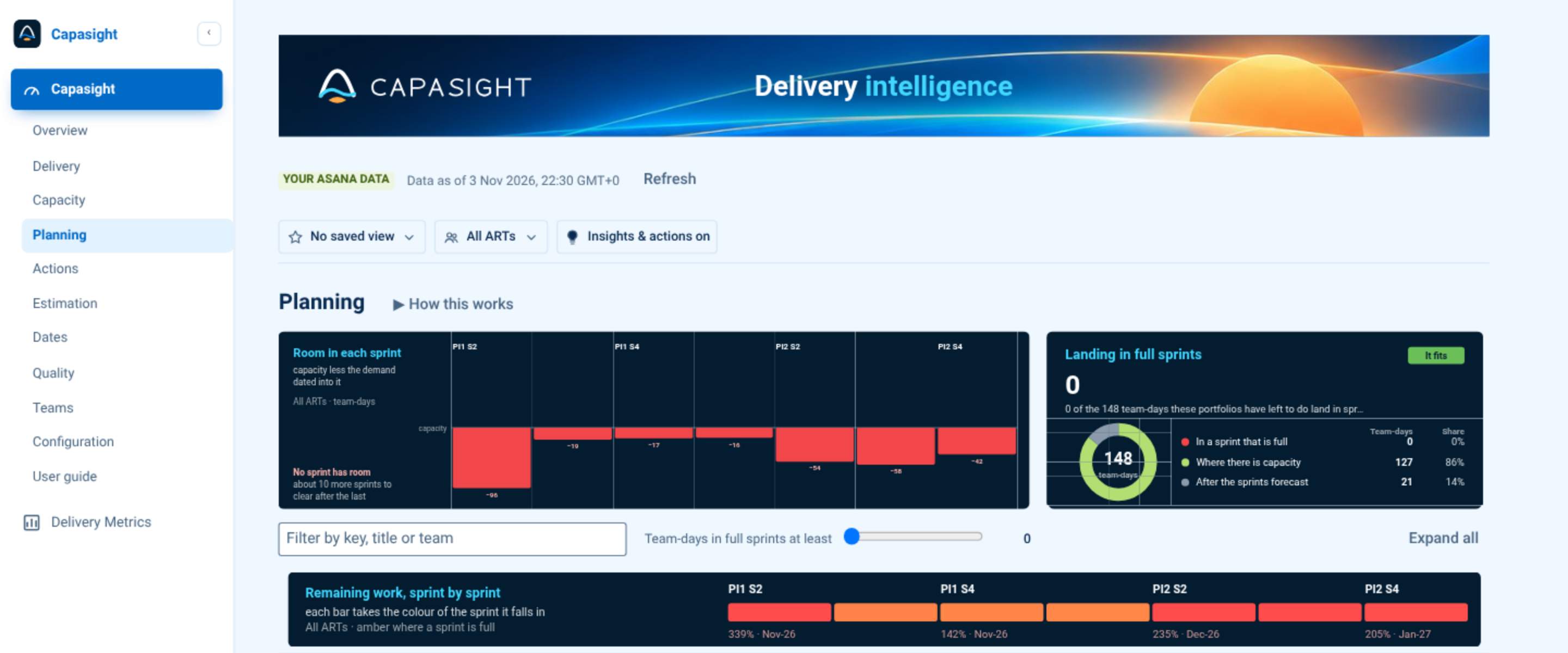
What you see
- The room left in each sprint: its capacity less the demand placed in it.
- How much of the plan lands in full sprints, how much has room, and how much has no dates.
- Every item at every level, nested as your portfolios nest them.
What to do
- Click a sprint to list only the items with work in it.
- Give dates to work that has none, and extend the plan for work dated beyond it.
Actions
What needs attention, most urgent first, and what would acting on it change?
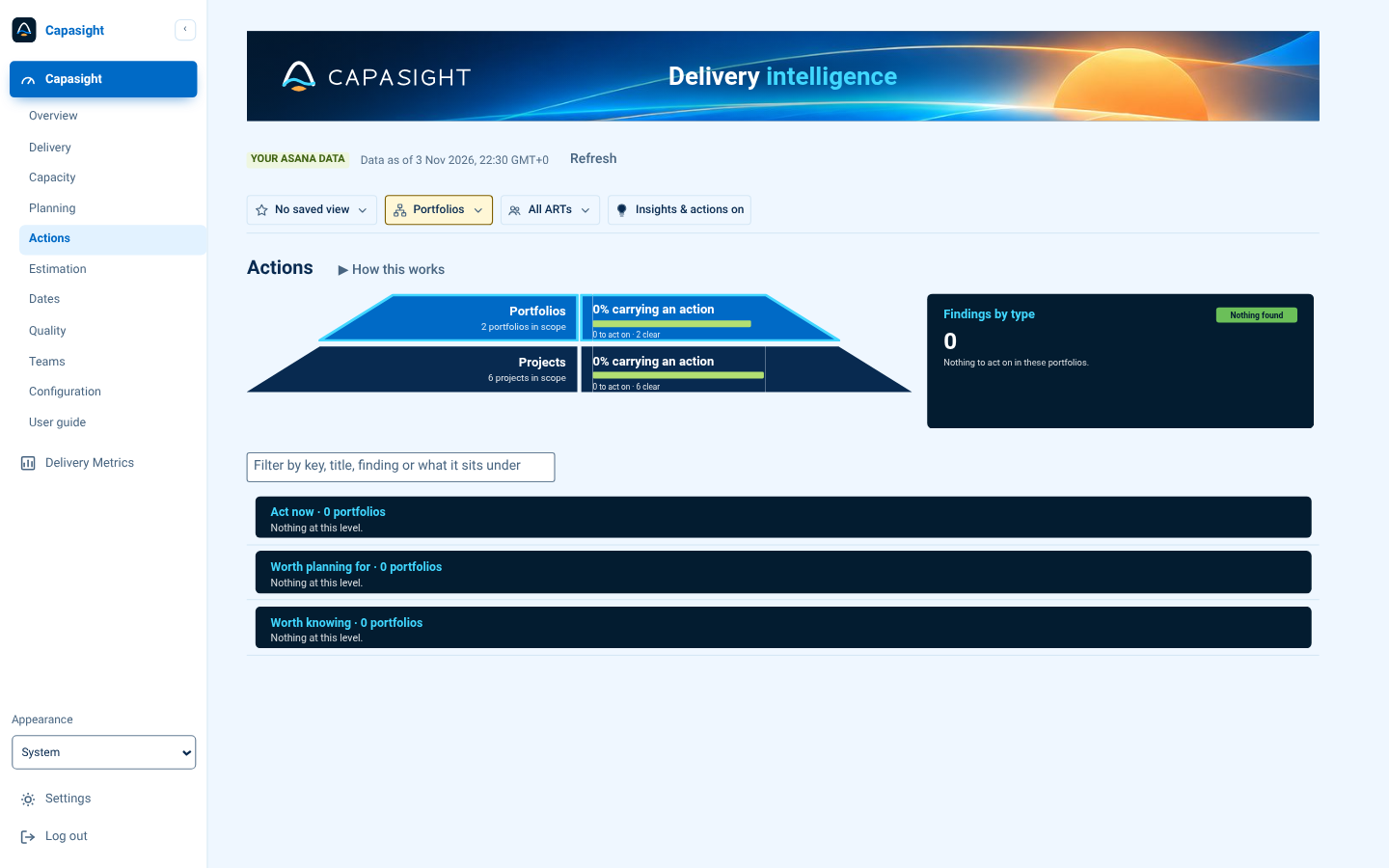
What you see
- Each level's share of items with at least one finding.
- Items in three sections: act now, worth planning for, worth knowing.
What to do
- Work down the list from the top. Each row says what to do and what it changes.
Estimation
Which items have outgrown the size somebody gave them, and what is that costing?
What you see
- Items grown past their T-shirt size.
- Items not yet broken down into tasks.
What to do
- For growth that lands in sprints already full, move some of the work to a later sprint, or accept the overrun deliberately. Re-sizing the item wouldn't change any figure, because the plan already counts the larger size.
Dates
Which dates have gone, which are about to, which are missing, and how much overdue work is the current sprint carrying?
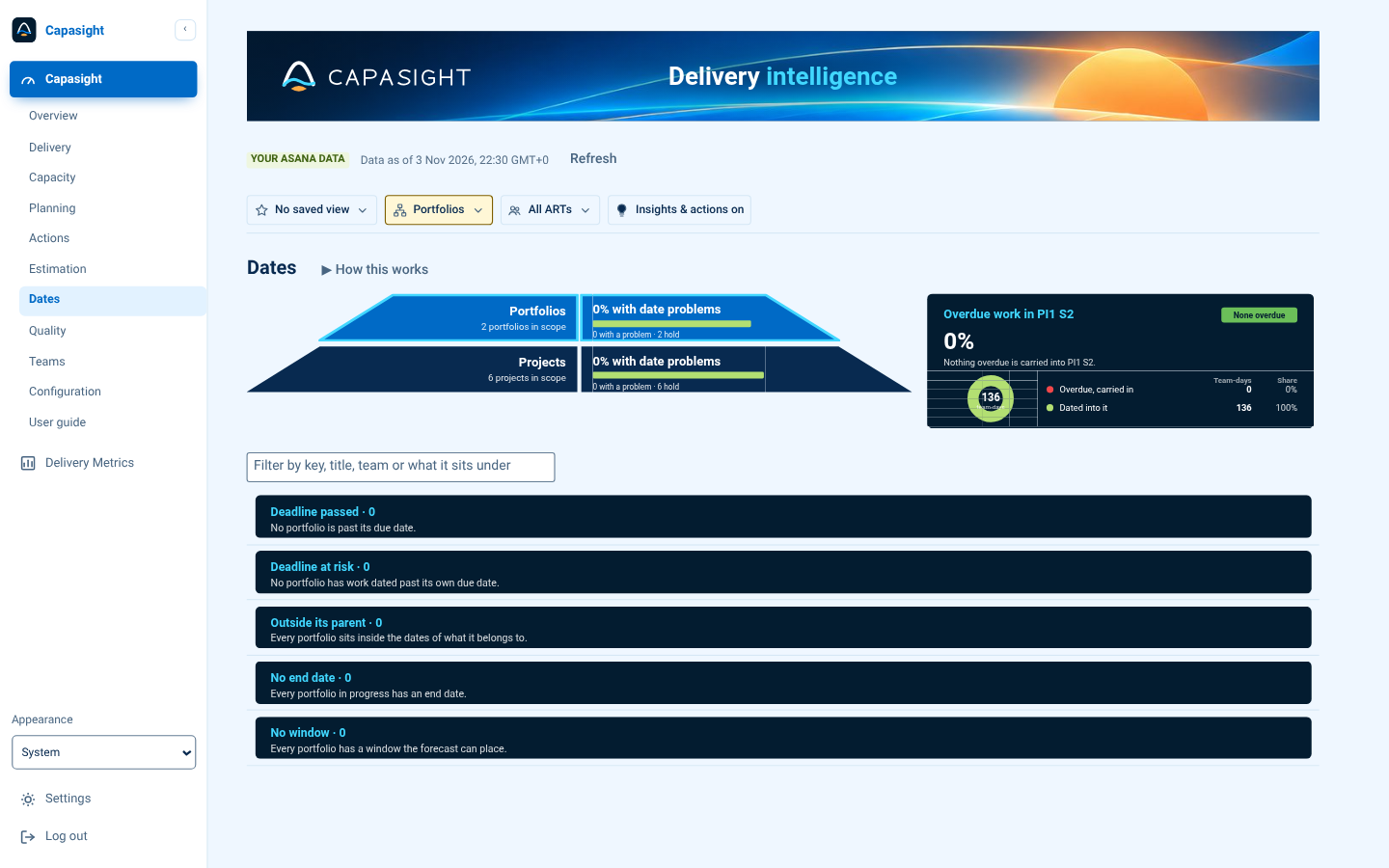
What you see
- One section per kind of problem, most serious first: deadline passed, deadline at risk, outside its parent, no end date, no window.
- The overdue work sitting in the current sprint.
What to do
- Re-plan passed deadlines to the date capacity says the work lands.
Quality
Which figures rest on incomplete data, and where are the gaps?
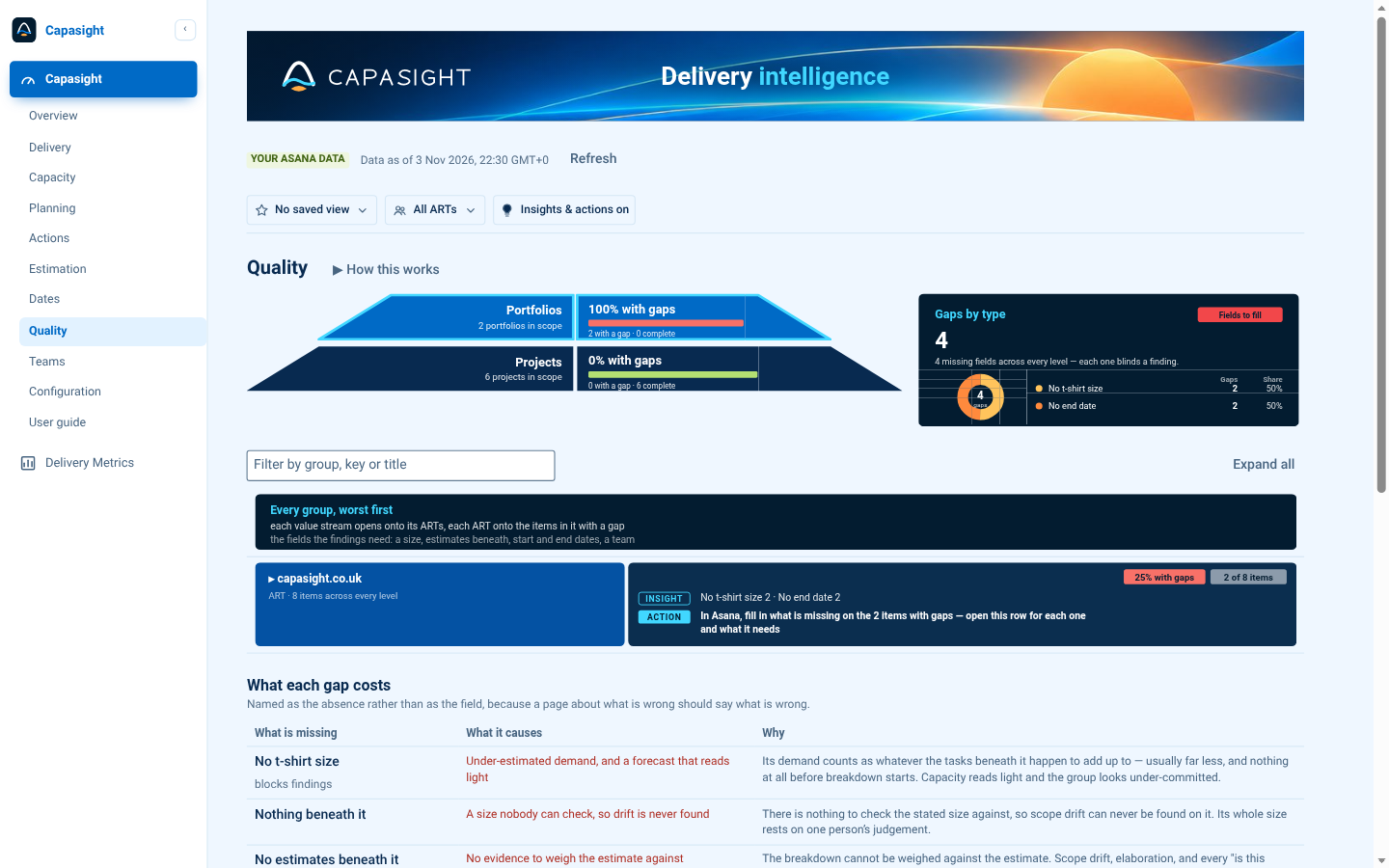
What you see
- Each level's share of items missing a size, estimates, a start, an end or a team.
- Every group, most gaps first, with the items that have them.
What to do
- Fill the gaps in Asana. The next read picks them up.
Teams
Is capacity what the teams actually deliver?
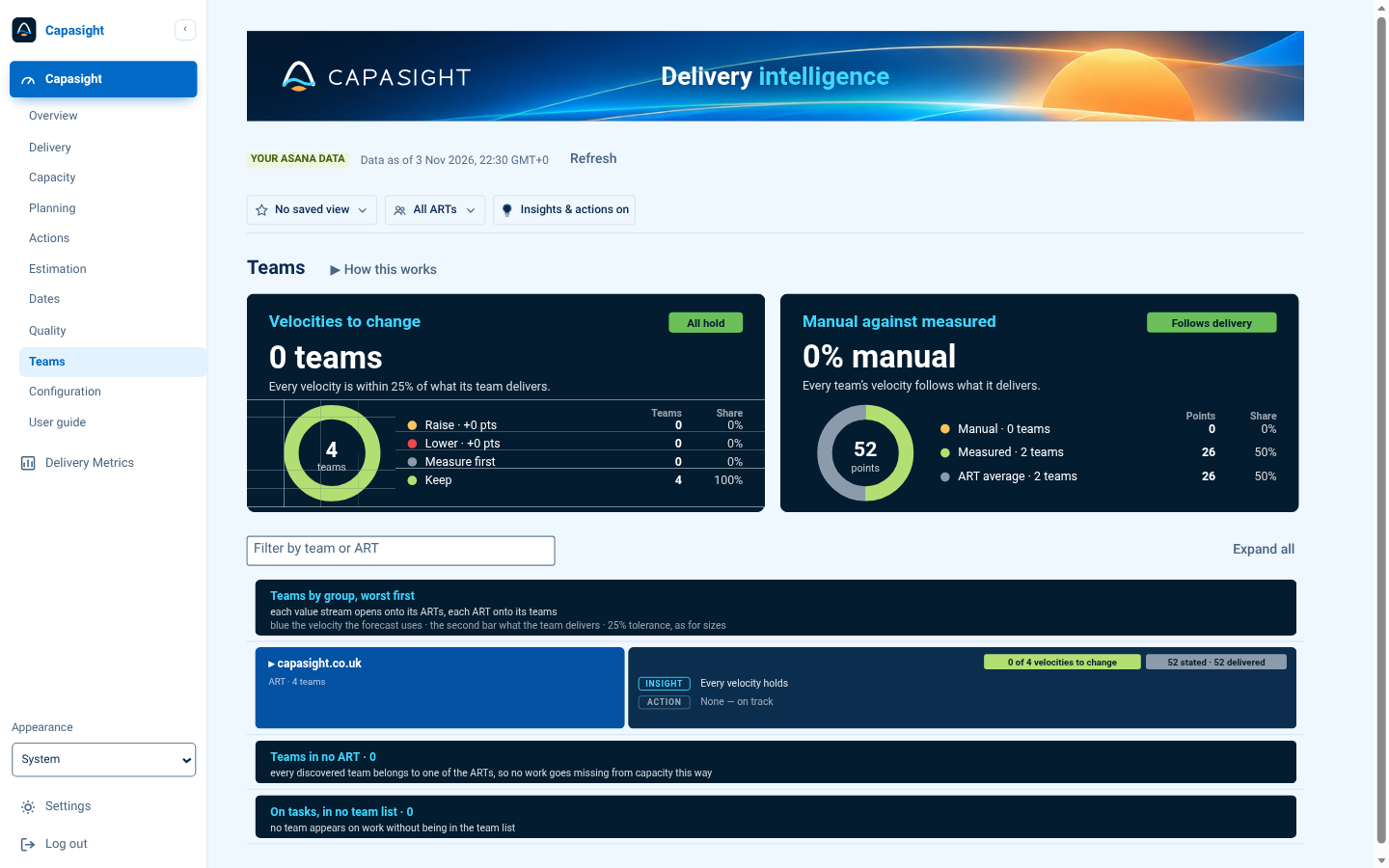
What you see
- Velocities to raise or lower, to match what each team delivers.
- How much of the capacity is typed rather than measured.
- Teams in no ART, so you can place them.
What to do
- Change a velocity in Configuration, or let it follow delivery.
How the numbers work
Asana holds T-shirt sizes, dates, points and completion. Every other figure is worked out from those, using the rules below.
Demand is the larger of two estimates
An item counts its own T-shirt size or the work written beneath it, whichever is larger.
Why not just add up the children?
Then a portfolio or project not yet broken down would count as zero demand.
Why not just use the T-shirt?
Then everything the teams have written down since would be ignored.
It's worked out level by level
Each level takes the larger of its own T-shirt and what the level beneath it adds up to. So a higher level is never smaller than the one below it.
If you state sizes in team-days, every level uses team-days and every screen shows team-days.
Finished and late work
Finished work has no demand left
A task marked complete counts zero remaining. Its project still counts the points it delivered.
You won't find a completed project in a list. Asana is the place to look at delivered work.
Late work is still demand
Work past its due date hasn't gone away. It's pulled into the current sprint, because it has to land somewhere.
An open item past its due date always counts as deadline passed, on every page.
Demand falls where the work is dated
Each project places its own demand in its own sprints. Only the part of a portfolio's size that no project accounts for is spread across the portfolio's dates.
Demand is shared by the ARTs doing the work
The part that is broken down goes to the ARTs whose teams own the projects. The rest goes to the one ART working beneath it, or to nobody.
The shares always add up to the whole, and no ART counts work another ART is also counting.
Only ARTs and value streams have capacity
An ART's capacity is the sum of its teams' velocities. Portfolios, projects and tasks are demand, never capacity.
Work on a team in no ART still counts as demand in the All ARTs total, but adds no capacity anywhere. The work is real, so it isn't hidden.
Velocity: stated, and measured
Capasight measures each team's velocity: the average of the points it completed in the last three closed sprints of your cadence, counted by each task's completion date. You can type a figure instead, team by team.
- Asana keeps no sprints, so each completed task counts in the Capasight sprint its completion date falls in.
- A team with nothing measured yet borrows its ART's average until it has completed work to measure.
- Which drives capacity is your choice, per team, in Configuration: Measured, or the figure you typed.
The sprint calendar runs forward
The calendar comes from the cadence you set: a start date, a sprint length and how many sprints make a PI. It starts at the sprint you're in.
A shorter sprint holds less. An ART doing 240 points a fortnight does 120 in a one-week sprint.
Over capacity, worked out
Late work is taken out first. What's left of the sprint's capacity is then set against the rest.
Every screen gives the same answer for the same ART and sprint.
Findings
A finding is only raised if acting on it changes a number.
Due date gone, work not marked complete.
Re-plan to the date capacity says it lands.
Its dates are fine, but its ART can't reach it in time.
Re-prioritise it, or clear the work ahead of it.
The date is still ahead, but the work beneath already runs past it.
Pull the late work forward, or move the date.
Its start date is after its due date.
Correct one of them. Until then, no sprint gets its demand.
The work beneath is bigger than its T-shirt.
Raised only when the extra lands in a sprint that's already full.
No due date, and nothing beneath to infer one from.
Give it a date so its demand can be placed.
No start date, and nothing beneath to take one from.
Give it a start date. Until then it adds nothing to the forecast.
Problems roll up
A portfolio with ten late projects beneath it shows that something beneath it needs attention, even if its own dates are fine.
Missing dates roll up too
An item with no dates of its own takes the range of the work beneath it.
What the app won't do: invent a start date or a velocity, ignore a stated size by only adding up the children, or spread a number it can't attribute just to make the totals add up.
Roles, names and your data
Who can do what
Workspace admin
A Capasight workspace admin
Connects Asana, runs setup, changes Configuration and selects Refresh.
Member
Anyone in your Capasight workspace
Reads every page. Changes no figure.
Admin changes apply to everyone from the next read. There's no personal configuration.
The names
Levels take Asana's names: Portfolio, Project and Task. Where portfolios nest inside portfolios, each portfolio layer is numbered. Above the team, Capasight says ART, Value stream and PI.
What Capasight keeps
Each item's name, T-shirt size, points, dates, completion, team and place in the hierarchy. No descriptions, comments or attachments. It's held in Capasight's hosting on AWS in the United States (us-east-1). The access Asana issues is sealed with AWS KMS and never shown again. Remove connection deletes everything read from Asana, its teams included.
Security
Two-step sign-in
For every user, with a password of 12 or more characters checked against known breaches.
Each workspace kept apart
Each workspace's data is kept apart, and that's tested on every route.
Sealed credentials
The access Asana issues is sealed with AWS KMS.
Reviewed
Against OWASP ASVS Level 2.
How current the figures are
Need a hand?
Report a problem or ask for a feature by emailing contact@capasight.co.uk. How Capasight handles your data is set out on the security page.