
Setup & use
Capasight integrations
Bring your planning into view in monday.com, Jira or Azure DevOps. Choose your platform for the inputs, setup and first steps.
Capasight for monday.com
Capacity, demand and delivery forecasts for monday dev. Follow epic commitments into team and sprint pressures, and ask Franklin about the Capasight page you have open.
Marketplace listing pending approval. Planned pricing: free up to 10 seats, with paid per-seat plans billed through monday.com. Pricing details →
Setup and first stepsInstallation, planning, screens and Franklin
What Capasight does
Bring the demand in your monday dev epics together with the capacity of the teams doing the work. Inspect delivery forecasts, overloaded sprints and suggested actions across the groups you plan together, including ARTs and value streams.
Watch the monday dev overview
Before you start
- A monday dev account with each team’s Epics, Tasks and Sprints boards in its team folder.
- Dated sprints, completed sprint history, and task story points in Estimated SP.
- Tasks connected to their epic and sprint, and timelines on epics.
- A t-shirt-size Status column on Epics is strongly recommended, so work not yet broken into tasks can be represented.
- An account admin to install the app and confirm setup.
Install and add Capasight
- An account admin installs Capasight on monday.com.
- In your teams’ workspace, select + in the left-hand list, then Apps, then Capasight.
- Leave the page open while the first read completes. Larger accounts can take a minute or two.
Capasight reads as the person using it. You see only boards your monday.com permissions allow, and it writes nothing to your boards.
Your first ten minutes
- Confirm the setup. Review the suggested planning columns, group names and planner access. Check the answers before finishing.
- Set up planning. Group teams into ARTs and, if used, value streams. Confirm sizes and sprint dates; team delivery history informs velocity.
- Read the Overview. Start with late epics and demand against capacity. Select a level for Delivery, a gauge for Capacity, or a group to narrow the view.
- Follow a finding. Inspect forecast dates in Delivery, priority findings in Actions, and available sprint room in Planning.
Ask Franklin in monday sidekick
Franklin answers questions about the Capasight page, filters and item you have open, using Capasight’s figures from the boards you can see.
- Add Capasight as a board view using + beside the board’s views, then Apps.
- Open monday sidekick with Ask, create, analyze and choose Switch to side panel.
- Use the tools button beside + in sidekick’s message box to enable Franklin. Each person does this once.
- Ask what is over capacity, which epic will be late, or what to review first. Name another team, group or item to change the focus.
Sidekick asks for approval when it uses Franklin. Franklin only reads and uses your account’s monday.com AI credits. Capasight’s screens run in your browser; Franklin’s answers are processed on monday.com’s app hosting.
Who can change what
Account admins manage setup and settings. Members of the planner team nominated by an admin can change planning settings. Other members read the figures and save shared views; viewers and guests can read and apply saved views.
Screens to orient your first visit
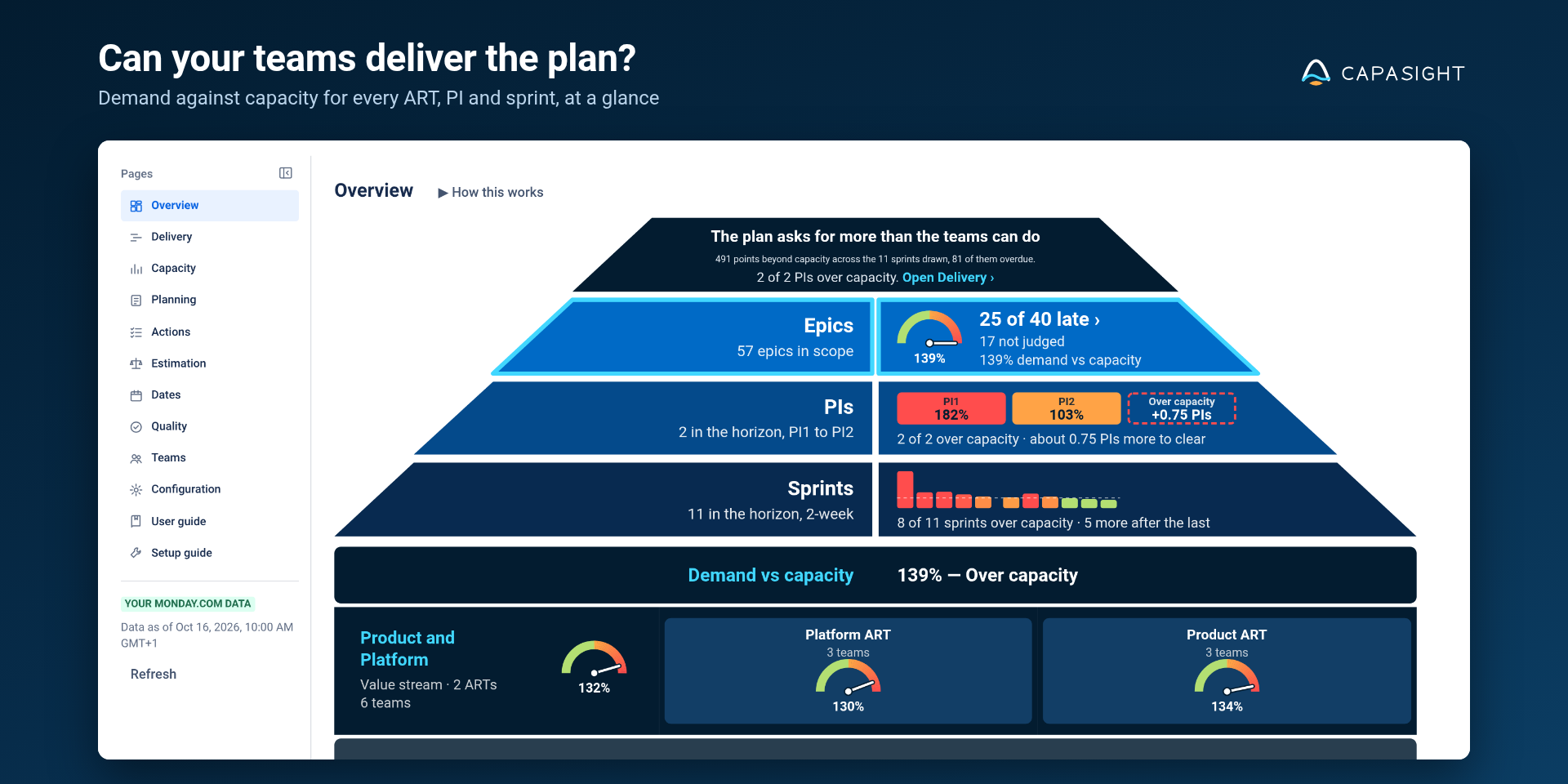
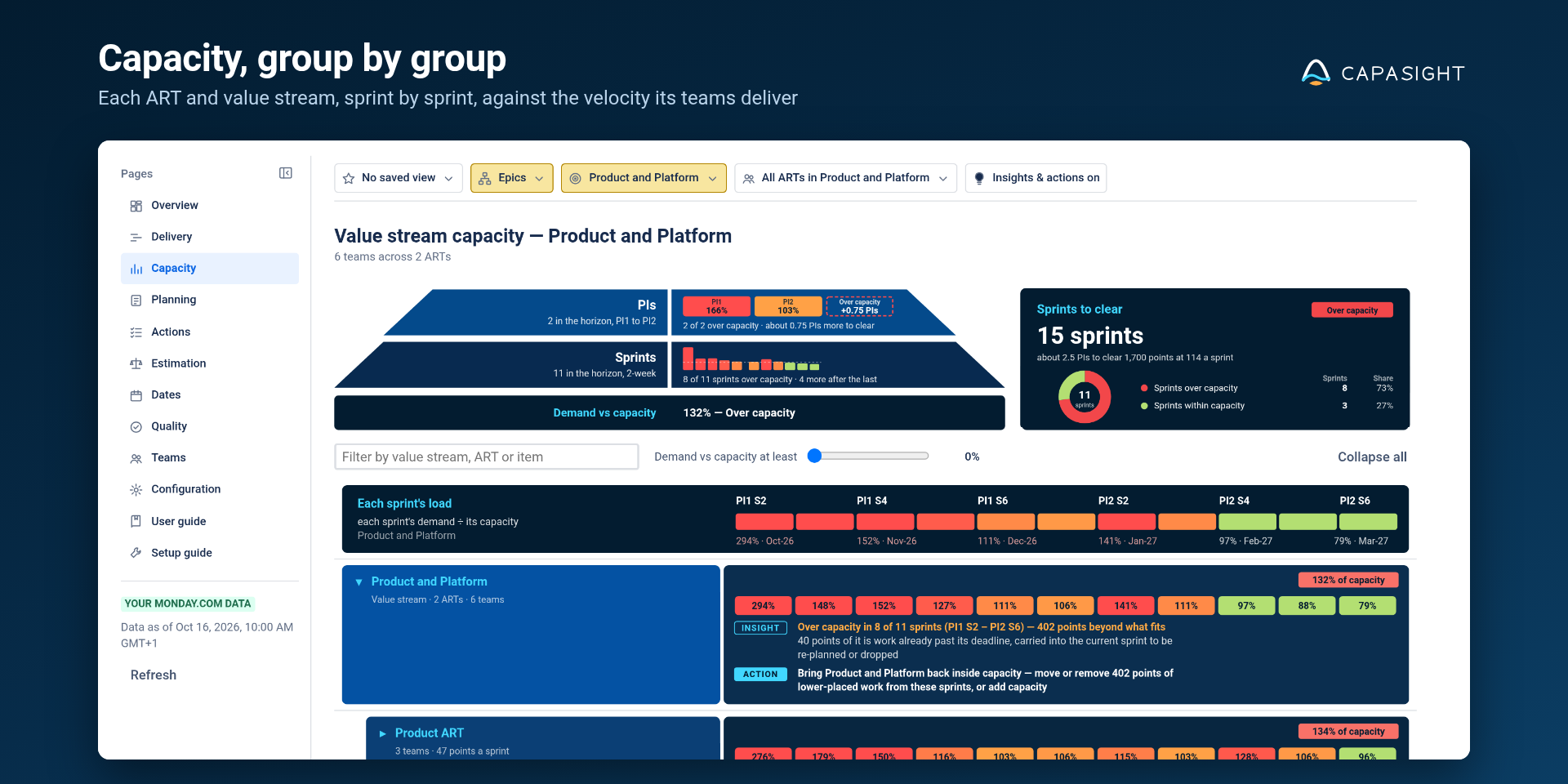
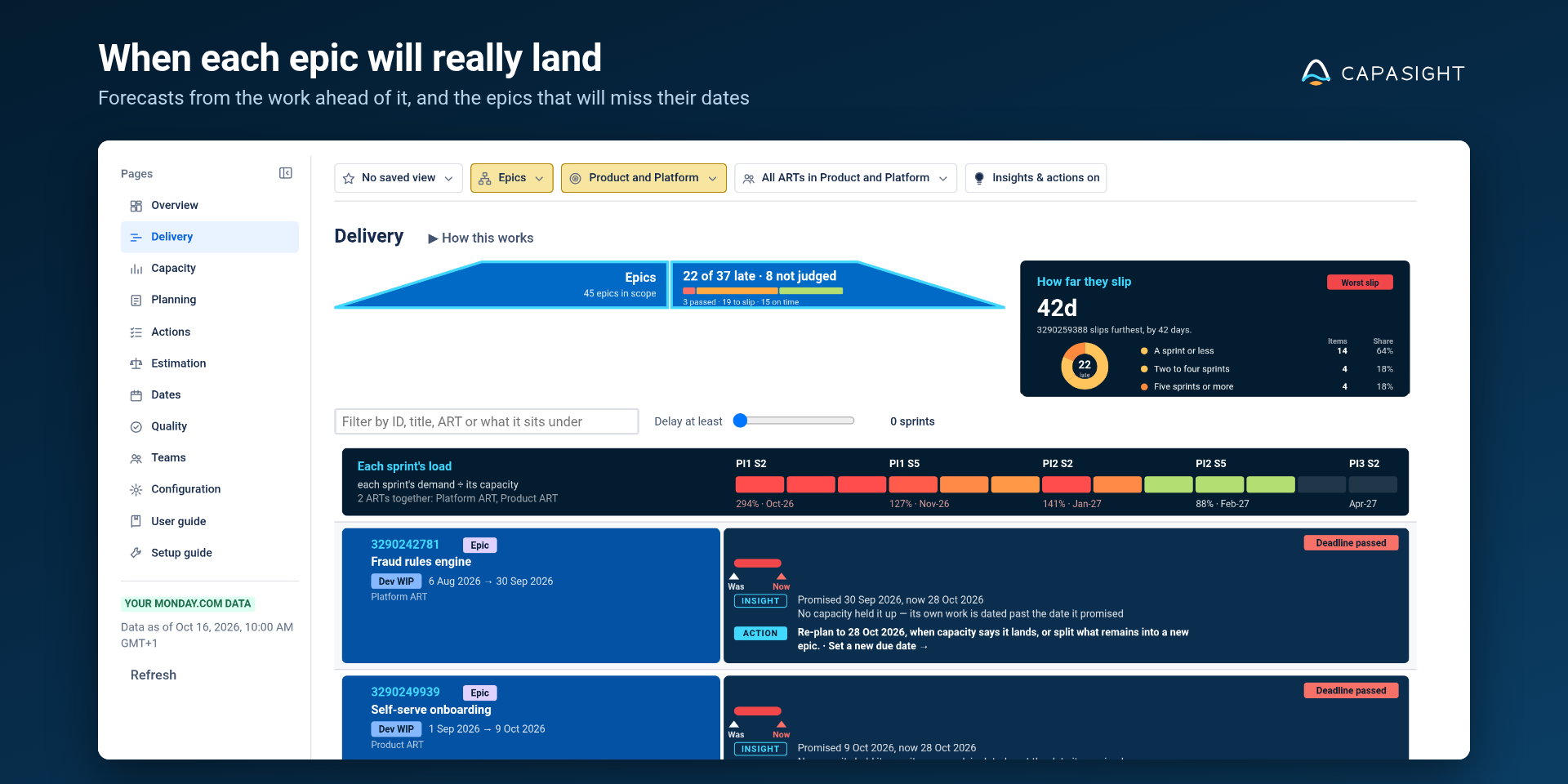
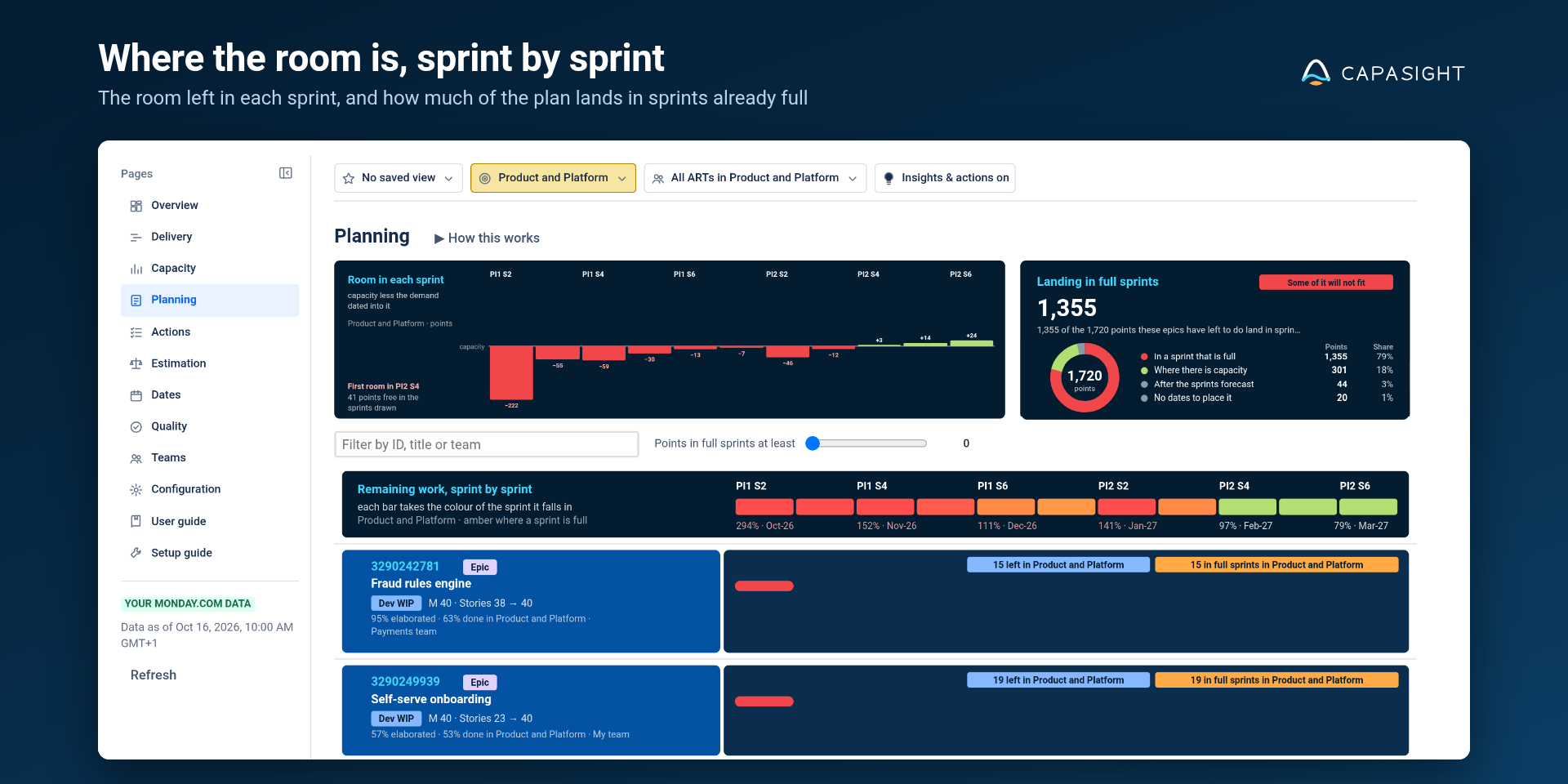
Help
User guide explains the figures; Setup guide covers configuration inside the app. The monday.com installation guide is also available from the marketplace and inside monday.com. For help, contact us.
Capasight:Lite for Jira
Connect your Jira planning hierarchy with estimates, dates and team capacity. Follow the signals from a portfolio view into the work that needs attention.
Free up to 10 users. Jira Cloud has its own user-based rates and billing terms. Pricing details →
Setup and first stepsPlanning inputs, installation, access and help
What Capasight:Lite does
Inspect estimates, emerging scope, delivery dates and capacity in Jira Cloud. Move from your configured issue hierarchy into team, ART and value-stream views, then follow findings to the work behind them.
Before you start
- A Jira Cloud site and an administrator to add the app and confirm configuration.
- Parent–child issue relationships that reflect the hierarchy you plan with.
- Story points or estimates, teams and sprint dates for underlying work.
- Sizes and planning dates on higher-level items, where available.
- Team and delivery-group configuration for the views you need.
Install and open Capasight:Lite
- Work with your Jira administrator to add Capasight:Lite to your site. Contact us for installation details.
- Open Capasight:Lite from your site’s apps and review Configuration and the setup guidance.
- Confirm the planning fields, groups and cadence. Use Quality to see which findings have enough evidence to run.
Your first ten minutes
- Check the planning picture. Confirm the issue levels and team groupings reflect the part of Jira you want to inspect.
- Start at Overview. Look for a date or capacity signal worth following, then select the relevant level or group.
- Inspect the context. Use Delivery and Capacity to connect the commitment with remaining work and the sprints carrying it.
- Review the next action. Read the finding and suggested action together, then discuss scope, dates, priorities or capacity with the decision owner.
Access and evidence
Capasight:Lite is a read-only Jira Cloud app built on Atlassian Forge. Missing estimates, dates or configuration can leave work unjudged; a blank finding is not evidence that a plan is safe. See Security and Privacy for the access and data-handling detail.
Help and a guided first look
The in-app Configuration, User guide and Setup guide support setup and use. You can also explore the sample portfolio with Franklin’s page-by-page walkthrough before working with your own data. The website demo uses fictional data and is not connected to your Jira site.
Capasight for Azure DevOps
Inspect Azure Boards commitments alongside the work and capacity behind them. Use your project’s backlog levels, teams and iterations to understand delivery pressure.
30-day free trial, then free up to 10 users with a licence key. Larger organisations buy an annual user-band licence directly from Capasight. Pricing details →
Setup and first stepsPlanning inputs, installation, access and help
What Capasight does
Bring your Azure Boards work hierarchy, estimates, dates and team capacity into a shared delivery picture. Capasight reads the backlog levels defined by your project’s process and helps you inspect demand, forecasts and practical next actions.
Watch the Azure overview
Before you start
- An Azure DevOps organisation and project using Azure Boards.
- Work-item relationships and backlog levels defined in your project’s process.
- Story points or estimates, work-item dates, team ownership and dated iterations.
- Teams grouped for planning, with delivery history or configured velocity.
- An administrator to add the extension and confirm setup.
Install and open Capasight
- Have your Azure DevOps administrator add the Capasight extension to your organisation. Install from the Azure DevOps Marketplace.
- Open Capasight from Boards, where it appears as a hub of its own.
- Review the setup suggestions for your project and confirm planning fields, groups and iteration dates.
Your first ten minutes
- Read the hierarchy. Check the Overview reflects the backlog levels and delivery groups you plan with.
- Locate capacity pressure. Inspect the PIs, sprints and groups in Capacity. Teams helps you review the delivery evidence behind velocity.
- Follow a commitment. Delivery brings the promised date and current forecast together with the work affecting it.
- Consider a change. Review Actions and the room shown in Planning before discussing scope, dates, sequence or capacity.
Access and licensing
Capasight reads your project as you, with your Azure DevOps permissions, and changes no work item. Organisation licences are ordered directly from Capasight. Find your Organisation ID in Configuration › Licence, then use the licence order form when needed. See the licence agreement for current terms.
Help
Use the app’s setup and user guidance for configuration and screen-level detail. For support, include the extension version from Organisation settings › Extensions, the Data as of time, and what the screen showed.
Start with your planning question.
Explore the guided demo · Review planning inputs · Compare capabilities · Talk through your setup