
Getting started
What Capasight does
Capasight reads your Jira and tells you whether the plan fits the teams, and what to change when it doesn't.

Demand
How much work each item really needs: its t-shirt size, or the work written beneath it, whichever is larger.

Capacity
What each Agile Release Train (ART) can deliver per sprint, from its teams' velocities.

Findings
Where the plan and the work disagree, with the action that would change the outcome.
What Capasight reads from Jira
Stories carry the points and the team. Everything above them carries a t-shirt size and dates. Capasight compares the two.
Set up Capasight
Step 1 takes a few minutes and is enough to see real findings. Step 3 adds capacity planning on top.
Before you start
Capasight compares what someone stated with what the work says. Every finding has this shape.
So Capasight needs these fields on your issues. You don't need them all on day one; the readiness check tells you what's missing.
| Field | Why it's needed | |
|---|---|---|
| Story points | The evidence half of every size finding. Map both of Jira's fields, Story Points and Story Point Estimate, because projects differ in which they use. | Required |
| T-shirt size | The stated half, on epics and initiatives. An Initiative XL is not an Epic XL, so each level has its own scale. | Required |
| Due date | Drives every date finding. Where an epic has none, the app works out a window from its children and says so. | Required |
| Start date | Capacity is used over a window, not on one day. Without a start, an item can't be placed in sprints. | Required |
| Team | Only for the capacity and cross-team views. Everything else works without it. | Optional |
1 Step 1: Admin setup
A Jira administrator opens Capasight:Lite from Jira's Apps menu. The setup wizard starts on its own.
Who: a Jira administrator · Result: date findings go live
-
See what the app found
The wizard opens by showing your levels (for example Initiative, Epic, Story) and how many items it found at each. It's a quick check that the app is reading the right estate.
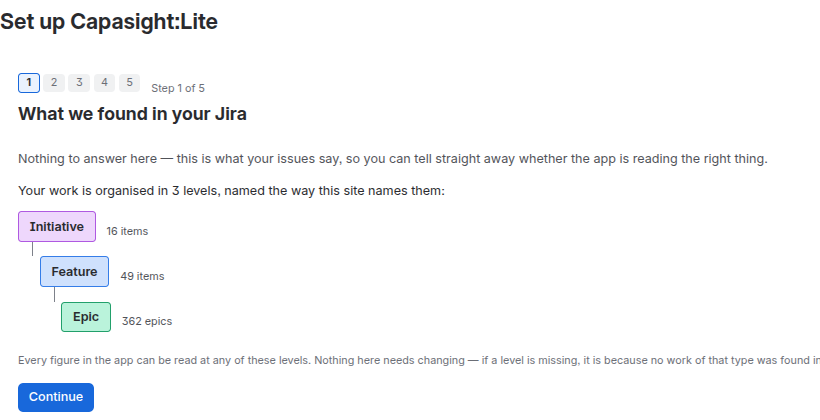
You don't choose projects. Capasight reads the work your teams do wherever it's filed. You can leave out noisy projects later, such as a sandbox or a service desk.
-
Check which fields hold your data
The app finds fields by name: Story Points, Story Point Estimate, anything named as a t-shirt size, and Team. Check the matches, and choose any it missed.
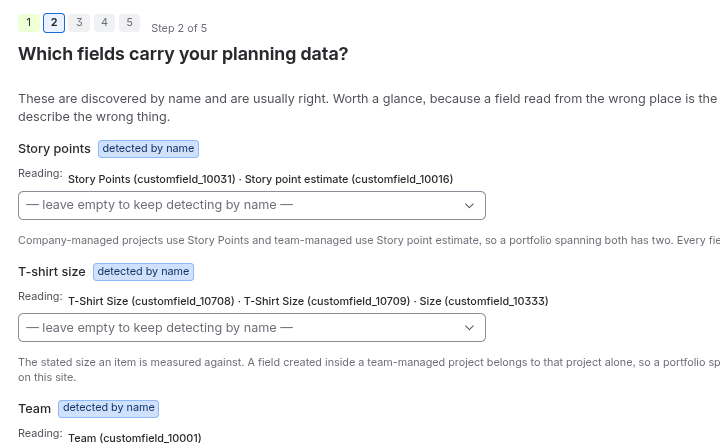
A field with an unusual name, or one named in another language, won't be picked up automatically. Choose it here and that choice sticks.
-
Name your groups and planning cycle
Capasight says Value stream, ART and PI by default. If your organisation says Tribe, Train or Quarter, type your words and every screen uses them.
ART→TribePI16 S3→Q16 S3Team and Sprint keep Jira's names. Renaming only changes what's displayed, so saved views keep working.
-
Choose who does the planning
Nominate a Jira group whose members can run the planning setup without being Jira administrators, for example your RTEs. If you name no group, you carry straight on into the planning setup yourself.
-
Finish, and see your findings
Nothing is saved until you finish. Leave part-way and your configuration stays exactly as it was.
2 Step 2: Check readiness
Configuration shows how much of your Jira carries each field. Thin coverage doesn't break anything, but it changes what the numbers mean.
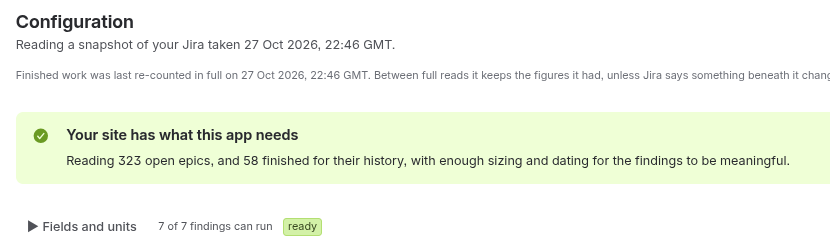
Configuration checks every finding against your data and says whether it can run, and why not. It's the first place to look when a number seems wrong.
Read your first findings
Start on the Overview. Click any tier to go deeper.
Overview
What's in Jira at each level, and what lands late.
Estimation
Items that have outgrown their size. Live after step 3, or after step 1 if your sizes are in points.
Dates
Deadlines gone, at risk or missing. Live after step 1.
You can stop here. Date findings work without any planning setup. Size findings and the capacity forecast wait for step 3, because sizes in team-days need team velocities to convert (if your sizes are in points, size findings work straight away).
3 Step 3: Planning setup
Open Set up planning on the Overview or Capacity page, or Review planning setup in Configuration. This is about how delivery is organised, which an RTE or programme manager knows best.
Who: an administrator or a nominated planner · Result: size findings, Delivery, Capacity and Planning go live
-
Say how delivery is organised
Do your teams deliver independently, are they grouped into ARTs, or are ARTs grouped into value streams too? The answer decides which of the next steps you see.
-
Group your teams into ARTs
You group the teams that already exist in Jira. You're not creating anything in Jira.
A team belongs to exactly one ART.
A team in no ART adds no capacity, but its work still counts as demand. The Teams page lists these teams so you can place them.
If your teams have parents in Atlassian Teams, setup offers that structure instead of making you type it, and keeps in step with it: a team moved in Jira moves here on the next refresh.
Velocity: each team in an ART has a velocity. Leave it on Measured, and Capasight averages the points the team accepted in its last three closed sprints. Type a figure only where you know better, for example a team that has just changed shape.
On a new site the velocities show "measured after you finish", because measuring needs the sprint calendar you set later. Don't take ceremonies or support rotas off a velocity: they're already in what the team delivers.
-
Group ARTs into value streams (optional)
Worth adding if planning conversations happen above the ART. A value stream's capacity is the sum of its ARTs.
-
Leave out any noisy projects
A sandbox, a service desk, or work nobody plans. Most sites leave nothing out.
-
Say what each t-shirt size is worth
Pick one unit for the whole site, story points or team-days. Every screen then shows its figures in that unit.
XS2.5 dS5 dM10 d · one sprintL20 dXL40 dThe starting scale for an epic on two-week sprints: a medium is one team for one sprint, and each size halves or doubles. Each level above Epic doubles again. Story points become team-days once, at the epic, at the average team velocity of its ART.
-
State the sprint cadence
Jira sprints belong to each team's board, so Capasight needs one calendar for the whole portfolio. It takes five settings.
PI start dateThe anchor for the whole calendarSprint lengthOne to four weeksSprints per PICount every sprint, including IPFirst PI numberOnly affects namesPIs shownHow far ahead to drawPI16 S1S2S3S4PI16 IPPI17 S1S2Five sprints per PI, the last an Innovation and Planning sprint. Tick "Last sprint is IP" to name it. It still takes planned work like any other sprint. Count the IP sprint. Four develop sprints plus an IP sprint is five sprints per PI. Entering four makes every PI a fortnight too short.Need a PI with an extra sprint, or one sprint that runs long? Use Adjust individual sprints under Sprint cadence. A shorter sprint holds proportionally less capacity.
-
Say when the app should speak up
Set the threshold, 25% by default. It does two jobs: how far the work beneath an item may grow past its t-shirt before that's scope drift, and how far short it may fall, once the work is in progress, before it's under-elaborated.
-
Finish
Size findings, Delivery, Capacity and Planning go live on the next read. As with step 1, nothing is saved until you finish.
Changing it later
See the effect first
Configuration shows how capacity and the headline figure will move before you save.
Save or discard
A bar at the top offers Save and Discard, and leaving the page asks before throwing changes away.
Start again safely
Start setup from scratch keeps a copy. Restore previous configuration puts everything back.
If you're seeing zeros
A count of zero isn't the same as no problems. These were all found on real Jira sites.
| What you see | Why | What to do |
|---|---|---|
| Scope drift is 0, but epics clearly vary | No epic carries a t-shirt size, so there's nothing to compare. | Add a t-shirt field to your Epic screen and size a few epics that already have estimated stories. This is the single most valuable change. |
| A field is mapped but reads as empty | The field exists, but isn't on that project's screens. | Add the field to the screen your project uses for that issue type. |
| Story points missing for some projects | Projects differ between Story Points and Story Point Estimate. | Map both. The app reads whichever is filled in. |
| Deadlines passed, but demand is 0 | The late work has no estimate. | Estimate the open stories, or size the epics. Each item is still counted as late. |
| Some epics report fewer points than they hold | The read ran out of time on an epic with thousands of children. | Leave noisy projects out in Configuration so the read completes. |
| No teams found | The Team field is empty, or not on your screens. | Fill in the Team field, or use a custom field named Team. |
Common questions
Does it change my Jira data?
No. The app is read-only and holds no write permissions at all. It makes no external calls, so nothing leaves your site.
Does everyone see the same figures?
Each person sees only the work Jira would show them. Projects they can't browse and issues hidden by a security level are left out, and a note says how many.
Check this when you set up: the app reads Jira under its own account, and Jira applies issue security to that account too. Work behind a security level the app isn't granted is missing from every figure, for everyone, and nothing says so. Grant the app access through the atlassian-addons-project-access role, or the matching project role in team-managed projects.
How current are the numbers?
They come from a snapshot taken in the background. The time in the header is when it was taken. Refresh takes a new one, and the old figures stay on screen until it finishes.
How much of my Jira can it read?
Up to 15,000 epics, newest first, and everything above and below them. How many reach the screen depends on your data, such as long summaries, so in practice it is between about 6,500 and 15,000. If your portfolio is bigger, every screen says how much was left out.
Why can't I select Initiatives?
Because no level above Epic was found. Levels above Epic are a feature of company-managed projects on Jira Premium and above. Without them, the app analyses epics and the work beneath them.
Why is an epic showing no demand?
It has no start date and hasn't started, its start is after its due date, or its work is finished. The first two are listed under No window on the Dates page.
What does "Remaining pts." mean?
What an item has left to do: the larger of its t-shirt and its story points, less the work already accepted. An epic sized M with 42 points written and 21 accepted asks for 21.
Why does Elaboration read over 100%?
The stories beneath an item have outgrown its size: 210% means the breakdown is twice the t-shirt. The plan already counts the larger figure.
Why is most under-sized work not listed?
An item under its t-shirt is usually one whose breakdown is still under way, which is normal. It's only raised once the work is in progress.
What happens if my licence lapses?
Capasight:Lite is paid through the Atlassian Marketplace, on your Atlassian invoice. If the subscription lapses, the app shows a notice until a Jira administrator renews it. Nothing is lost: everything comes back as it was.
Reading any screen
The parts of a screen
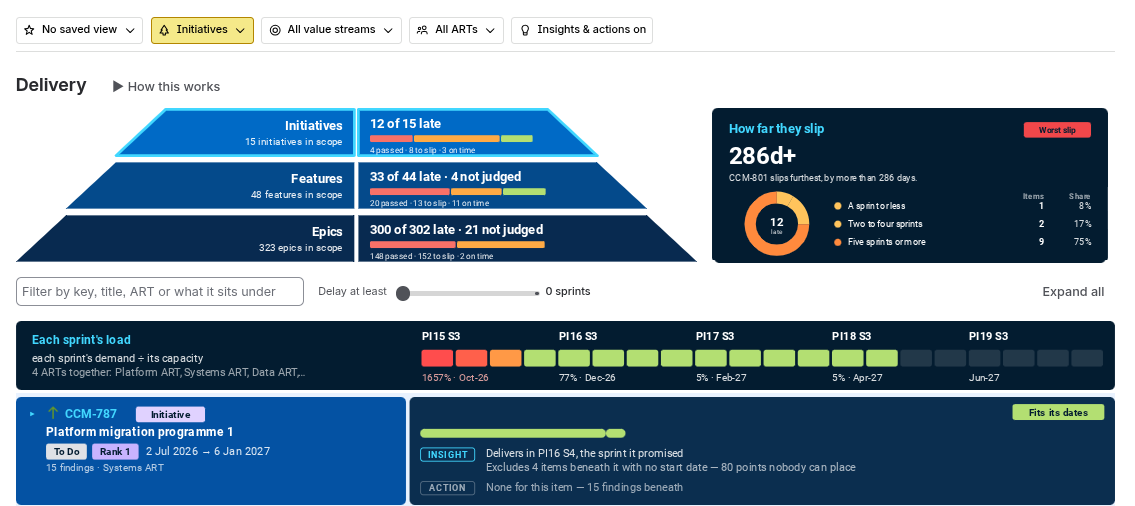
Every screen is built the same way, from the top down.
 1
2
3
4
5
1
2
3
4
5
- Filters: the level, value stream and ART. They apply to every screen at once, except the Overview and Quality, which always show everything.
- Pyramid: one tier per level of your hierarchy, with that screen's headline figure on each.
- Headline panel: the one number the screen is about, broken down.
- Sprint load: each sprint's demand against its capacity, in colour.
- Lanes: one per item or group. The issue is on the left, and what was found and what to do is on the right.
What the colours mean
The same four colours mean the same thing on every screen.
It fits: inside capacity, inside its size, planned.
More than expected: over capacity, grown past its size, or running past its date.
A date missed, or one capacity says will be.
Not being worked, or nothing stated to measure.
Insight and Action
The right-hand side of every lane says what was found, then what to do about it.
InsightDelivers in PI16 S4, the sprint it promised.
ActionNone for this item. 15 findings beneath.
- Insight (outlined) is what the row shows.
- Action (filled) is what to do. It uses the same words as the Actions page, so two pages never ask for different things.
- None (greyed) means there's nothing to do. It's a verdict, not a gap.
Turn Insights & actions off at the end of the filter row to scan the bars without the text.
Filters and saved views
Filters change what you see, never the figures themselves, and only for you.
Level
Read the same portfolio at Epic, Initiative or any level above. Each level answers a different planning question, so compare them.
Value stream and ART
Narrow everything to one group. Items above it stay on screen so you can see what the work is part of.
A saved view is a named set of filters that everyone can use. There's no personal default, so two people always start from the same picture.
The screens
Each screen answers one question. Start with the Overview, and click any tier to go deeper.
Overview
What's in my Jira at each level, what lands late, and which groups carry it?
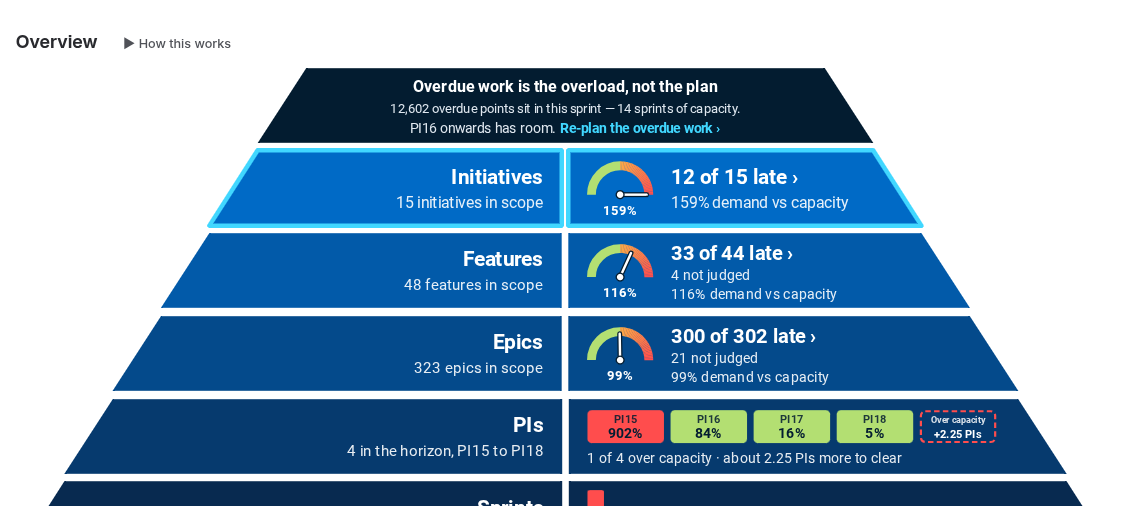
What you see
- Top: what's causing the picture, for example overdue work rather than over-promising.
- Each tier: how many issues are at that level, how many land late, and a gauge of demand against capacity.
- Below: PIs and sprints coloured by load, then a tile for each ART.
On the gauge, straight up is 100%. Every gauge uses the same scale, so you can compare tiers directly.
Delivery
Given what each ART can deliver, when does this work actually land?
What you see
- Each level's late count, split into deadline passed, forecast to slip and on time.
- How far the late items slip.
- A lane per item: its plan against the sprints, with the verdict in the corner.
What to do
- Open a late item to see which ART sets its date.
- Follow its Action: re-plan the date, re-rank it, or pull late work forward.
Capacity
What has this group committed to, against what it can do, sprint by sprint?
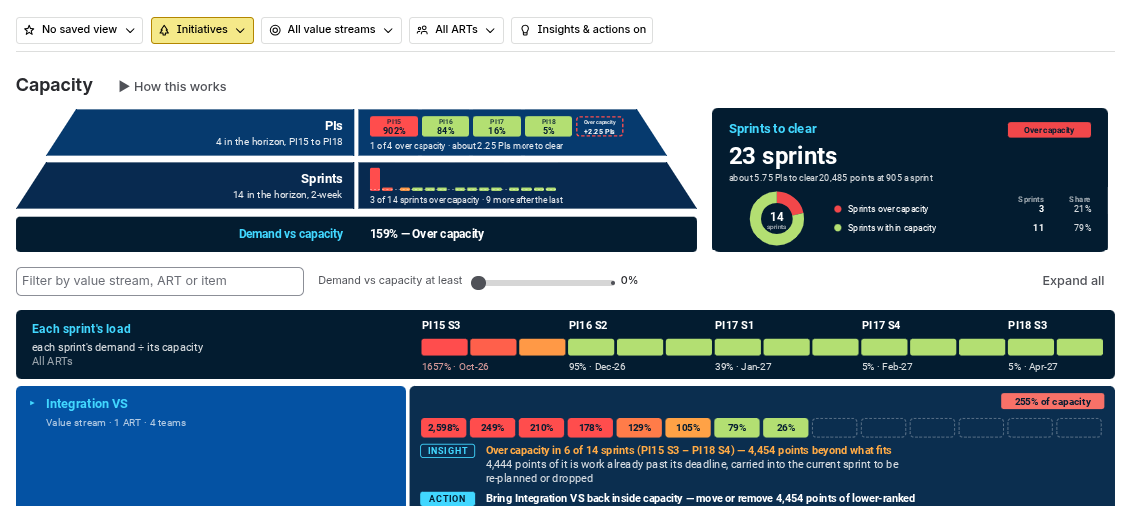
What you see
- Each PI and sprint, coloured by its load.
- How many sprints it would take to clear the work.
- A lane per value stream and ART, with how far over capacity it is and by how many points.
What to do
- Follow each group's Action: move or remove the lower-ranked work it names.
Planning
How does the whole plan sit against the sprints it falls in?
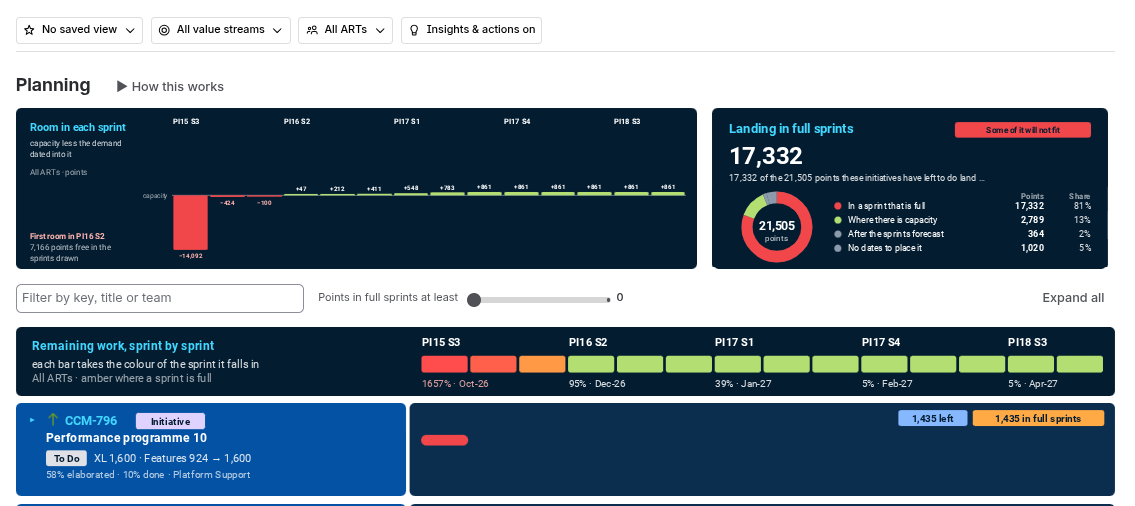
What you see
- The room left in each sprint: its capacity less the demand placed in it.
- How much of the plan lands in full sprints, how much has room, and how much has no dates.
- Every item at every level, nested as Jira nests them.
What to do
- Click a sprint to list only the items with work in it.
- Give dates to work that has none, and extend the plan for work dated beyond it.
Actions
What needs attention, most urgent first, and what would acting on it change?
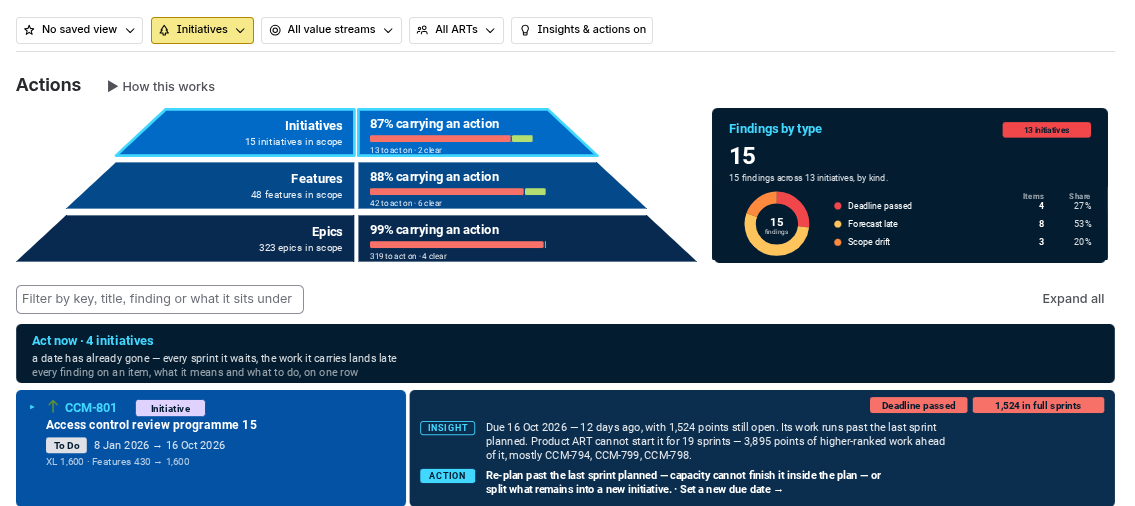
What you see
- Each level's share of items with at least one finding.
- Items in three sections: act now, worth planning for, worth knowing.
What to do
- Work down the list from the top. Each row says what to do and what it changes.
Estimation
Which items have outgrown their original size, and what does that mean for capacity?
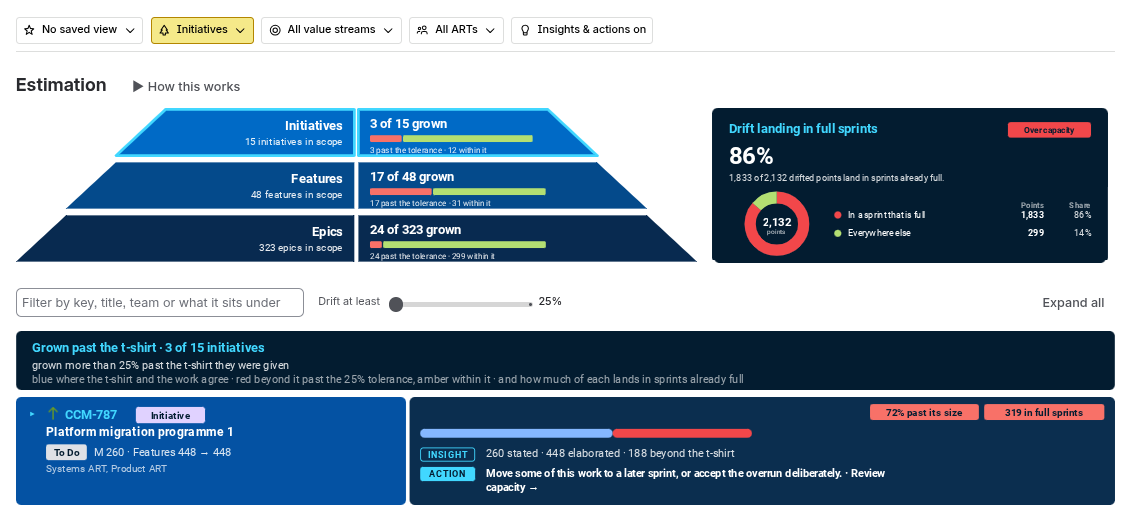
What you see
- Items grown past their t-shirt size.
- Items under way whose breakdown falls well short.
- Items not yet broken down.
What to do
- For growth that lands in sprints already full, move some of the work to a later sprint, or accept the overrun deliberately. Re-sizing the item wouldn't change any figure, because the plan already counts the larger size.
Dates
Which dates have gone, which are about to, which are missing, and how much overdue work is the current sprint carrying?
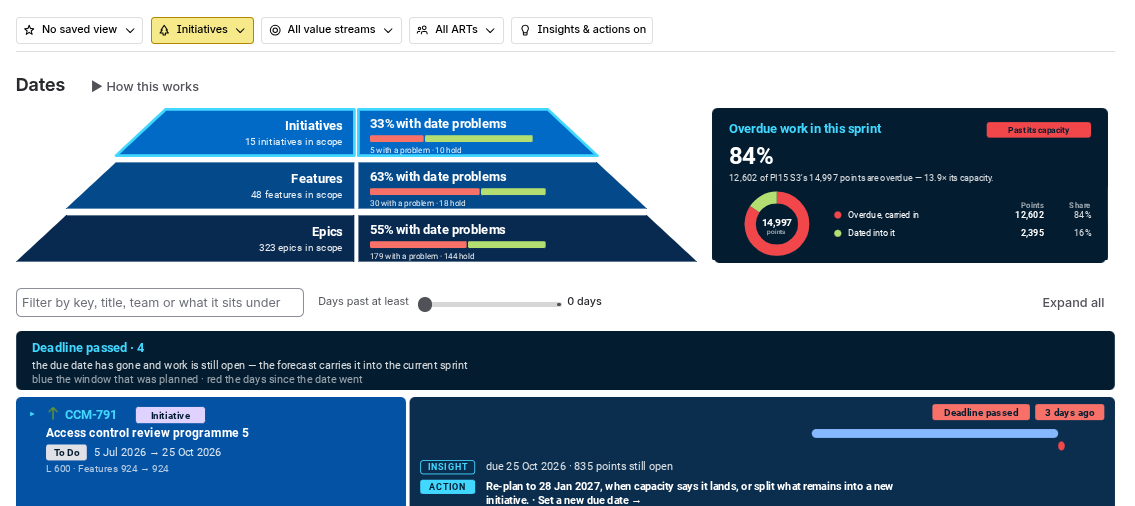
What you see
- One section per kind of problem, most serious first: deadline passed, deadline at risk, outside its parent, no end date, no window.
- The overdue work sitting in the current sprint.
What to do
- Re-plan passed deadlines to the date capacity says the work lands.
Quality
Which figures rest on incomplete data, and where are the gaps?
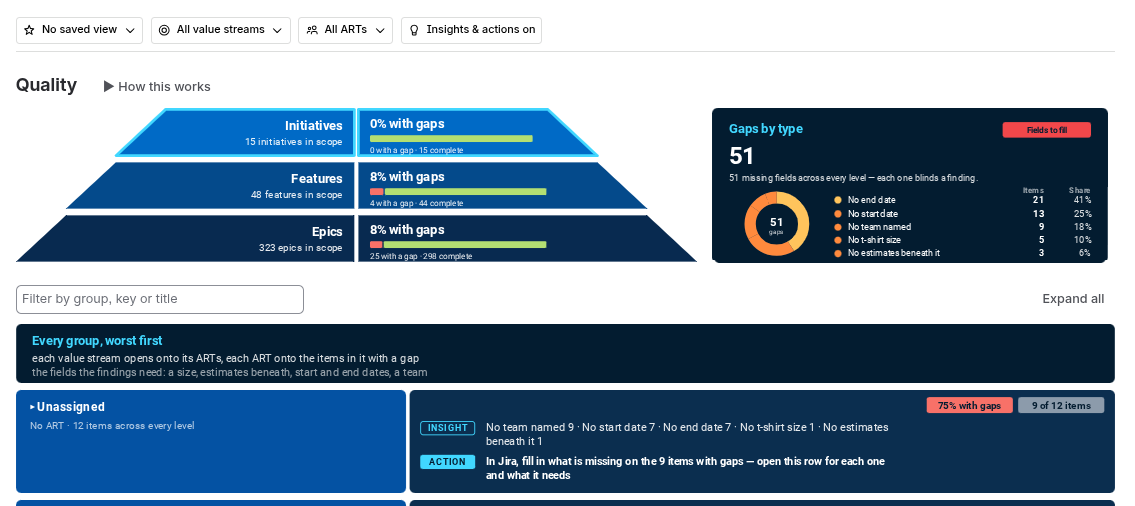
What you see
- Each level's share of items missing a size, estimates, a start, an end or a team.
- Every group, most gaps first, with the items that have them.
What to do
- Fill the gaps in Jira. The next refresh picks them up.
Teams
Is capacity what the teams actually deliver?
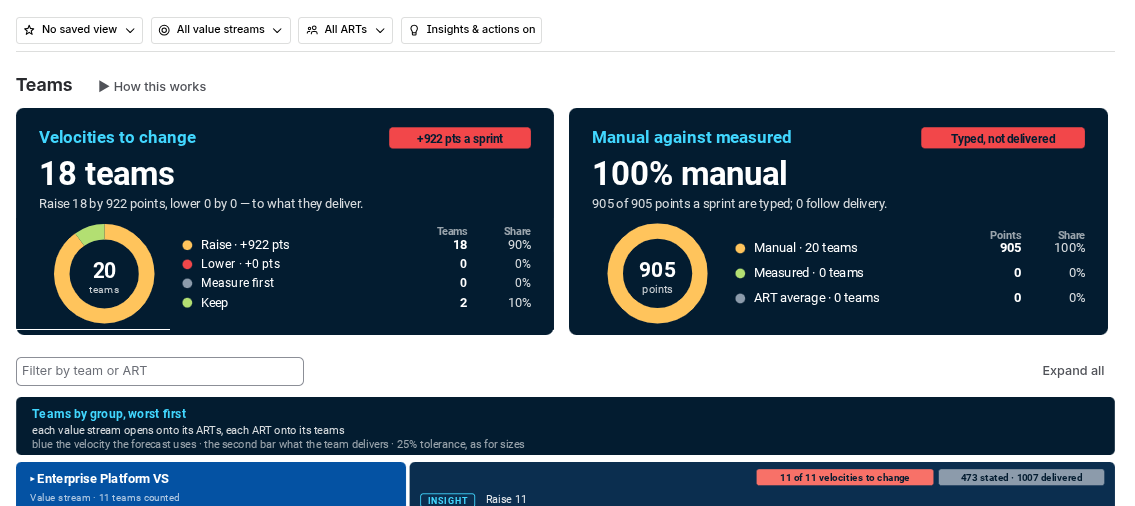
What you see
- Velocities to raise or lower, to match what each team delivers.
- How much of the capacity is typed rather than measured.
- Each team's own Jira sprints, found through its stories.
What to do
- Change a velocity in Configuration, or let it follow delivery.
How the numbers work
Jira holds t-shirt sizes, dates and story points. Every other figure is worked out from those, using the rules below.
Demand is the larger of two estimates
An item counts its own t-shirt size or the work written beneath it, whichever is larger.
Why not just add up the children?
Then an initiative not yet broken down would count as zero demand.
Why not just use the t-shirt?
Then everything the teams have written down since would be ignored.
It's worked out level by level
Each level takes the larger of its own t-shirt and what the level beneath it adds up to. So a higher level is never smaller than the one below it.
If you state sizes in team-days, every level uses team-days and every screen shows team-days.
Finished and late work
Finished work has no demand left
A done item counts zero remaining. Its parent still counts the story points it delivered.
You won't find a finished epic in a list. Jira is the place to look at delivered work.
Late work is still demand
Work past its due date hasn't gone away. It's pulled into the current sprint, because it has to land somewhere.
An open item past its due date always counts as deadline passed, on every page.
Demand falls where the work is dated
Each epic places its own demand in its own sprints. Only the part of a parent's size that no child accounts for is spread across the parent's dates.
Demand is shared by the ARTs doing the work
The part that is broken down goes to the ARTs whose teams own it. The rest goes to the ART the item names, or to nobody.
The shares always add up to the whole, and no ART counts work another ART is also counting.
Only ARTs and value streams have capacity
An ART's capacity is the sum of its teams' velocities. Initiatives, epics and stories are demand, never capacity.
Work on a team in no ART still counts as demand in the All ARTs total, but adds no capacity anywhere. The work is real, so it isn't hidden.
Velocity: stated, and measured
Capasight measures each team's velocity: the average of its last three closed sprints. You can type a figure instead, team by team.
- Fewer than three sprints? One or two are averaged as they are. A brand-new team borrows its ART's average until its first sprint closes.
- A sprint with nothing delivered is left out of the average, not counted as zero.
- Which drives capacity is your choice, per team, in Configuration.
The sprint calendar runs forward
The calendar comes from the cadence you set: a start date, a sprint length and how many sprints make a PI. It starts at the sprint you're in.
A shorter sprint holds less. An ART doing 240 points a fortnight does 120 in a one-week sprint.
Over capacity, worked out
Late work is taken out first. What's left of the sprint's capacity is then set against the rest.
Every screen gives the same answer for the same ART and sprint.
Findings
A finding is only raised if acting on it changes a number.
Due date gone, work still open.
Re-plan to the date capacity says it lands.
Its dates are fine, but its ART can't reach it in time.
Re-rank it, or clear the work ahead of it.
The date is still ahead, but the work beneath already runs past it.
Pull the late work forward, or move the date.
Its start date is after its due date.
Correct one of them. Until then, no sprint gets its demand.
The work beneath is bigger than its t-shirt.
Raised only when the extra lands in a sprint that's already full.
In progress, but the work beneath falls short of its size.
Break the rest of it down.
No due date, and nothing beneath to infer one from.
Give it a date so its demand can be placed.
No start date and not under way.
Give it a start date. Until then it adds nothing to the forecast.
Problems roll up
An initiative with ten late epics beneath it shows that something beneath it needs attention, even if its own dates are fine.
Missing dates roll up too
An item with no start date takes the earliest start among the items beneath it, as Jira's own plans do.
What the app won't do: invent a start date or a velocity, ignore a stated size by only adding up the children, or spread a number it can't attribute just to make the totals add up.
Roles, names and your data
Who can change what
Admin
A Jira administrator
Fields, names, editors, and everything an editor can change.
Editor
A member of a nominated Jira group
Teams and ARTs, velocities, the t-shirt scale and threshold, cadence, and projects left out.
User
Anyone who can open the app
Reads everything and saves shared views. Changes no figure.
Admin and editor changes apply to everyone from the next read. There's no personal configuration.
The names are yours
Out of the box the app says Value stream, ART and PI. An administrator can change them to your words, such as Tribe, Train or Quarter, and every screen follows. Team and Sprint keep Jira's names.
Everyone sees what Jira shows them
Projects and issues you can't see in Jira are left out of your figures, and the page tells you how many. Two people with different access can see different numbers, and both are right.
How current the figures are
The app reads up to 15,000 epics, newest first. If a portfolio is bigger, every screen says how much was left out.
Need a hand?
See what is already known, fixed or planned on Capasight:Lite known issues and requests. Report a problem or ask for a feature by emailing contact@capasight.co.uk. How the app handles your data is set out on the security page.