Connect backlog levels
Follow a commitment through the backlog levels defined by your project’s process.

Planning & delivery intelligence
Follow an Azure Boards commitment to its constraints.
Capasight for Azure DevOps brings your project’s backlog hierarchy, estimates, dates and team capacity into one delivery picture. Inspect what is putting commitments under pressure and which changes are worth discussing.
Follow a commitment through the backlog levels defined by your project’s process.
See the work competing for teams and iterations, alongside the forecast for the commitment.
Move from a finding to scope, timing, sequence and capacity decisions with the people responsible.
Keep the planning view your teams use. Add the scope, date and capacity context behind the commitment.
Accessibility compliance programme 7 · matched Azure test-portfolio example
The source backlog shows Accessibility compliance programme 7 and the work below it.
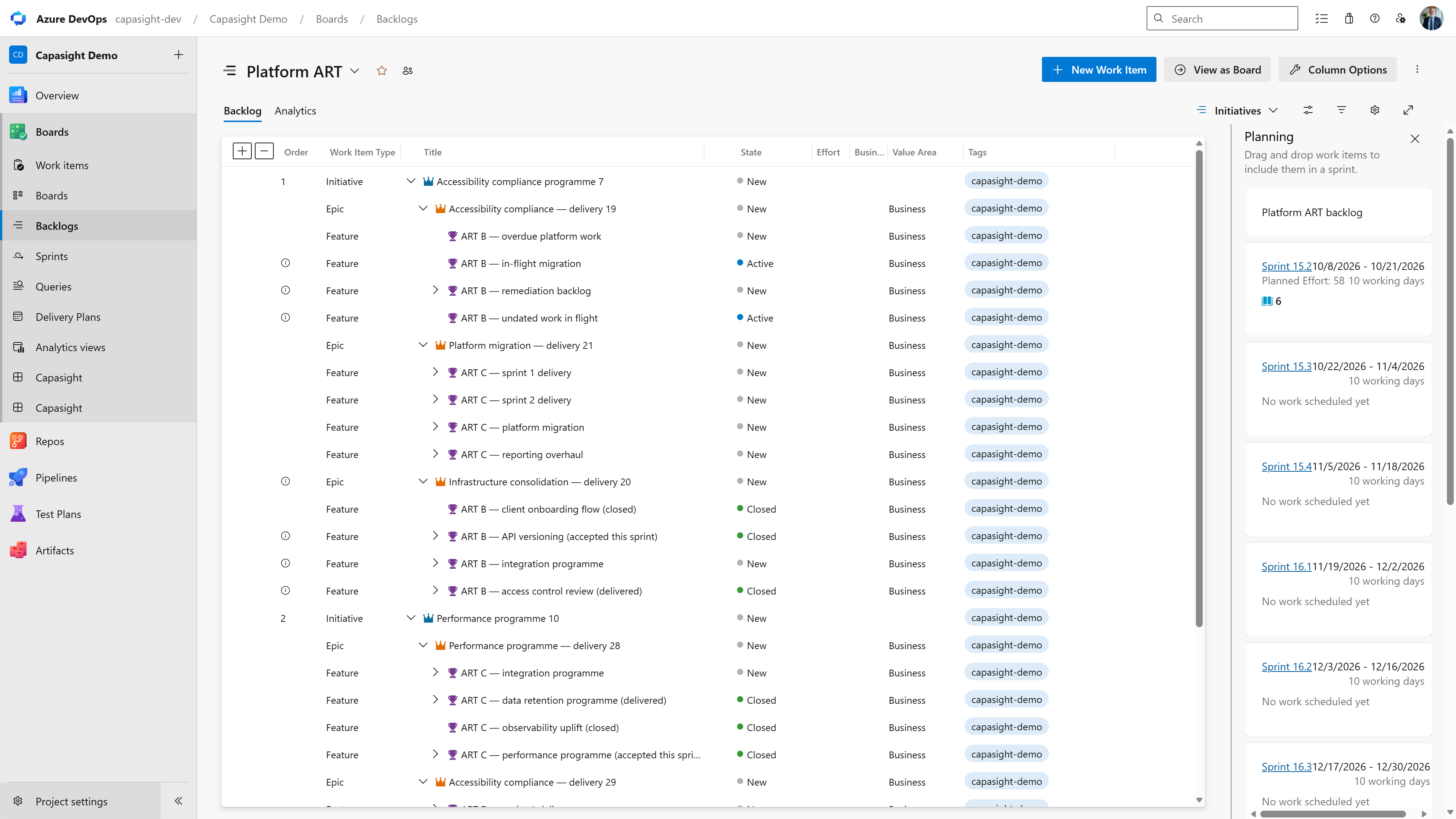
The same initiative’s finding identifies Data ART as the group setting the finish, the nine-sprint wait behind other work, and a suggested action.

Existing Azure test-portfolio captures, not customer data. The Capasight image is a focused crop of the same initiative; its figures and text are unchanged.
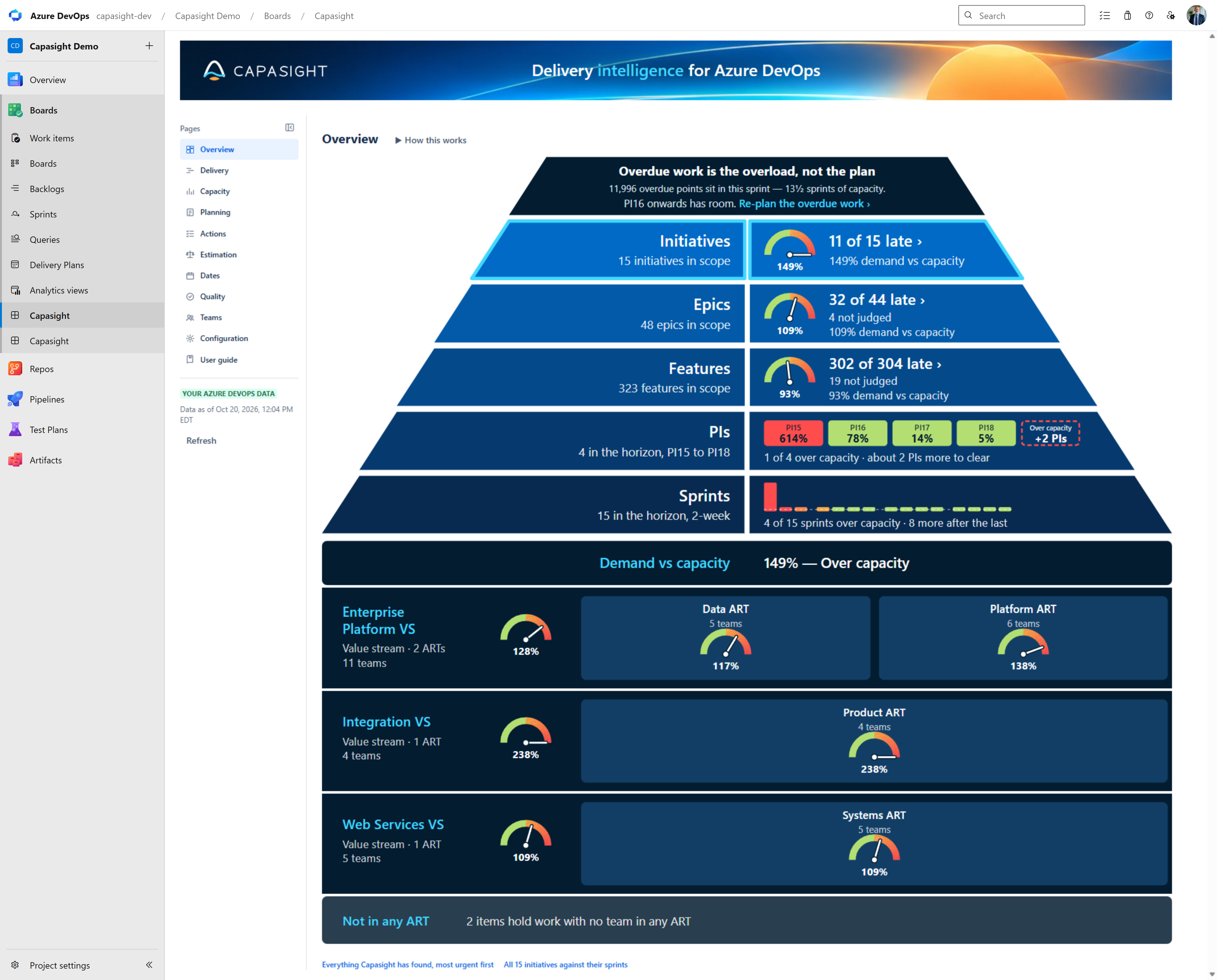
Expand a screen for its purpose and a test-portfolio example.
See the Azure test project’s backlog levels alongside date and demand signals, then locate the value streams and ARTs carrying the work. The names and figures shown belong to the sample portfolio.
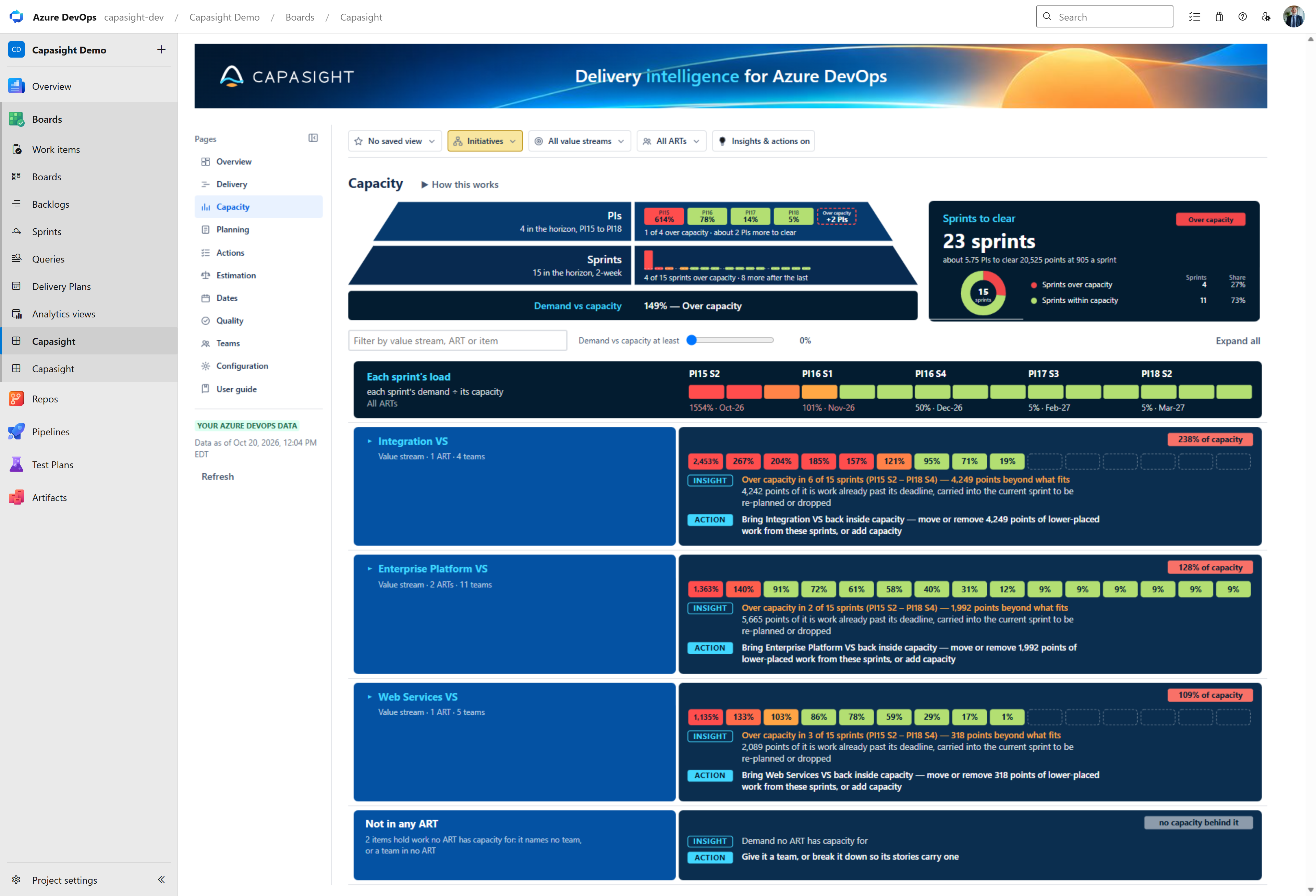
Compare the shared sprint load with the load of individual delivery groups. The Azure sample shows overloaded periods, overdue demand and suggested reviews of work placement or capacity.
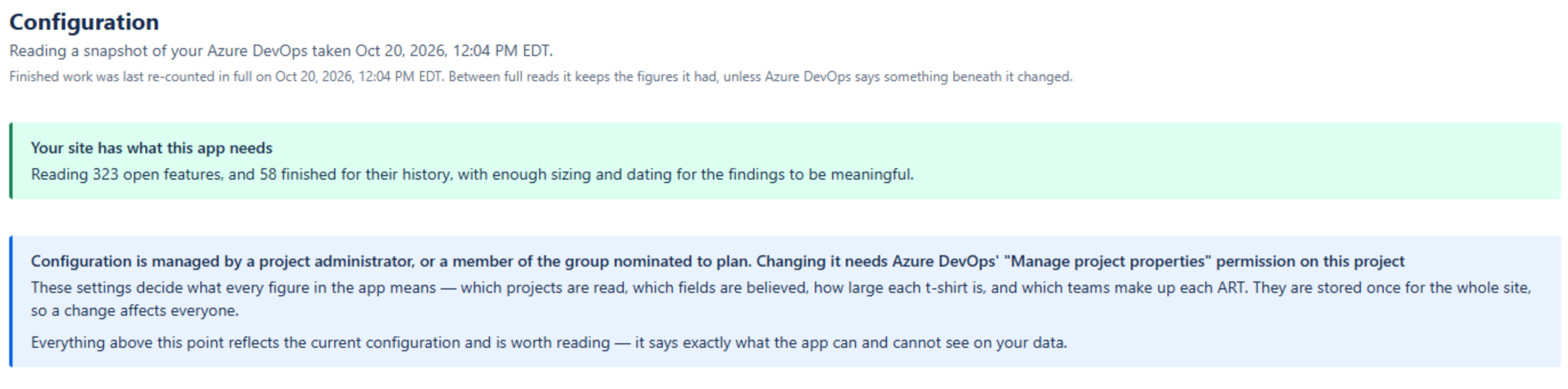
Configuration confirms whether the project has enough sizing and date information for meaningful findings and explains who manages the planning settings. This focused crop comes from the existing Azure test project. Detailed calculation and licence settings are outside the capture.
Play the overview here, or watch on YouTube →.
Capasight for Azure DevOps
Every organisation gets a 30-day trial from first use, with nothing to enter or pay. After the trial, organisations with up to 10 users remain free with a licence key.
Up to 100 users: £2,040 / €2,340 / $2,700 per year. Paid licences cover an organisation user band for one year. Order directly from Capasight and pay by invoice; Microsoft does not handle billing.
| Organisation users | GBP / year | EUR / year | USD / year |
|---|---|---|---|
| Up to 10 | Free | Free | Free |
| Up to 100 | £2,040 | €2,340 | $2,700 |
| Up to 250 | £4,080 | €4,740 | $5,436 |
| Up to 1,000 | £7,860 | €9,120 | $10,476 |
| Up to 2,500 | £11,700 | €13,680 | $15,696 |
| Up to 5,000 | £16,920 | €19,680 | $22,596 |
| Up to 10,000 | £22,680 | €26,400 | $30,396 |
Larger organisations: by quote. Prices exclude VAT; UK customers pay 20% VAT. Rates reviewed 20 October 2026; confirm the current price when ordering.
Order a licence → · Marketplace listing → · Azure DevOps setup guide →
Bring your Azure Boards work hierarchy, estimates, dates and team capacity into a shared delivery picture. Capasight reads the backlog levels defined by your project’s process and helps you inspect demand, forecasts and practical next actions.
Capasight reads your project as you, with your Azure DevOps permissions, and changes no work item. Organisation licences are ordered directly from Capasight. Find your Organisation ID in Configuration › Licence, then use the licence order form when needed. See the licence agreement for current terms.
Use the app’s setup and user guidance for configuration and screen-level detail. For support, include the extension version from Organisation settings › Extensions, the Data as of time, and what the screen showed.
Install the extension for your organisation, then open Boards › Capasight in your project.
No. It reads your project using your Azure DevOps permissions and changes no work item.
Each organisation has a 30-day trial from first use. Afterwards, up to 10 users remain free with a licence key; larger organisations buy an annual user-band licence directly from Capasight.
Talk through the plan you need to inspect and the evidence available in your tools.